Verification
Require validation of verification images before they are accepted.
Introduction
Verification allows you to add accountability to your lock by requiring that submitted images are reviewed and validated before being accepted. These images can verify your session by displaying your chastity device along with a verification code, or demonstrate the completion of assigned tasks.
When configuring verification, you can choose who validates your submissions:
- Community members (peer verification): A community-driven process where other members review and validate your images through a voting system
- Only my keyholder: A private process where only your keyholder reviews and validates your submissions
Verification is available for the following extensions:
Verification modes
Community verification (peer verification)
With community verification, all members can participate in validating or rejecting submissions. Once a verification image is posted, it remains available for review during a voting window. During this period, members can vote to approve or reject it, and the wearer sees a "Voting ends in..." countdown on the ongoing verification.
The voting window is configured in the extension settings:
- Voting duration: how long the vote stays open, from 15 minutes to 6 hours. The default is 6 hours. Pick one of the presets or choose "Custom…" to set your own duration.
- End voting early once enough votes are in: optionally, close the vote as soon as a chosen number of votes has been cast, between 3 and 100. This is useful with short locks, where waiting for the full duration would be too long.
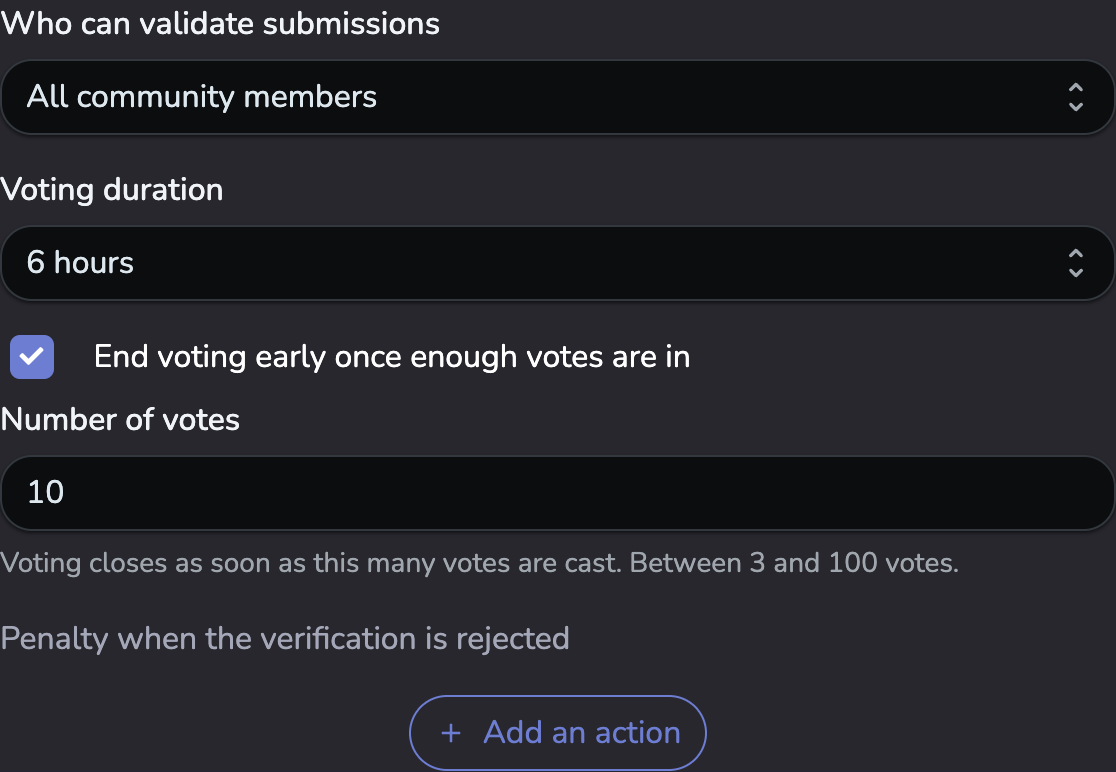
When voting closes, the submission is evaluated: if at least 75% of the votes are approvals, it is considered validated. If not, the submission is rejected, and the wearer receives a pre-configured penalty associated with the lock. If nobody voted, the submission is validated.
The voting duration is set when the verification is created: changing the configuration does not affect a verification already in progress.
Keyholder verification
With keyholder verification, only your keyholder can review and validate your submissions. Your verification request will be visible only to your keyholder, who can approve or reject it at their discretion. If rejected, you will receive the pre-configured penalty associated with the lock.
Requesting verification
In the configuration settings for your extension (e.g., Verification Picture or Tasks), enable the "Enable verification" option. You can then choose who can validate your submissions:
- All community members (peer verification): Other members of the community can review and vote on your submissions
- Only my keyholder: Only your keyholder can review your submissions
You can also configure the penalties that apply if your image is rejected.
Once you upload your image, you can monitor the verification status on the extension page. This includes indicators for "ongoing", "verified" or "rejected". For community verification, you'll also see the count of approval and rejection votes.
Validating images
Community verification
To participate in validating other members' images, navigate to the verification page from your lock page or via the top-right menu. Here, you can view a list of all pending community verification requests.
For each request, a list of specific checks will be displayed based on the type of verification. Common verification types include:
- Chastity device: Ensure the chastity device is securely locked and that the verification code matches the one visible in the image. If the user is using a numbered seal, you will also need to verify that the seal number shown in the image matches the registered number.
- Tasks: Ensure the image clearly demonstrates that the task has been completed as required, with sufficient evidence of adherence to the task's specifications.
If the submission meets all criteria, approve it. If it does not, reject it by selecting from multiple predefined rejection reasons. These reasons will be visible to the submitting user, helping them understand what went wrong and improve future submissions.
Do not approve or reject images arbitrarily. Votes are analyzed post-review, and patterns of incorrect voting may result in penalties or restrictions on your ability to validate future images.
Keyholder verification
As a keyholder, when your wearer submits an image for keyholder verification, you will receive a notification and can access the verification request from your keyholder dashboard. You can review the submission against the same criteria and either approve or reject it. If you reject the submission, you can select a rejection reason that will be visible to the wearer.