Extension schedules
With schedules, choose exactly when an extension can be used: a shower window every morning, a spin of the wheel on weekend evenings, or a single extra opening on a special day.
Schedules are currently in preview and are being rolled out progressively. You may not see them in the app yet.
Introduction
Most extensions let you act again after a waiting time, or earn actions over time (see Modes). With On a schedule, actions are only available inside the windows you choose instead. Each window gives a number of actions, for example one opening between 07:00 and 07:45.
These extensions can run on a schedule:
| Extension | One action is |
|---|---|
| Dice | a roll |
| Wheel of Fortune | a spin |
| Tasks | a task |
| Verification picture | a picture |
| Hygiene opening | an opening |
Community extensions can also offer it. When they do, On a schedule appears in their settings like for the extensions above.
An action is counted when it starts. For example, an opening started at 07:40 in a window that ends at 07:45 still lasts the full time allowed by the Hygiene opening settings: the schedule decides when you can start, not when you must finish.
Actions don't carry over. An action you don't use before its window ends is lost, and the next window starts again with its own count.
Configuration
When you add an extension that supports schedules, its settings first ask how often the action can happen. Choose On a schedule. You can also change it later in the How often block of the extension settings.
A new schedule starts with one window: every day, all day, with one action. Edit it or add more with Add a time. The schedule only takes effect once you save the extension settings.
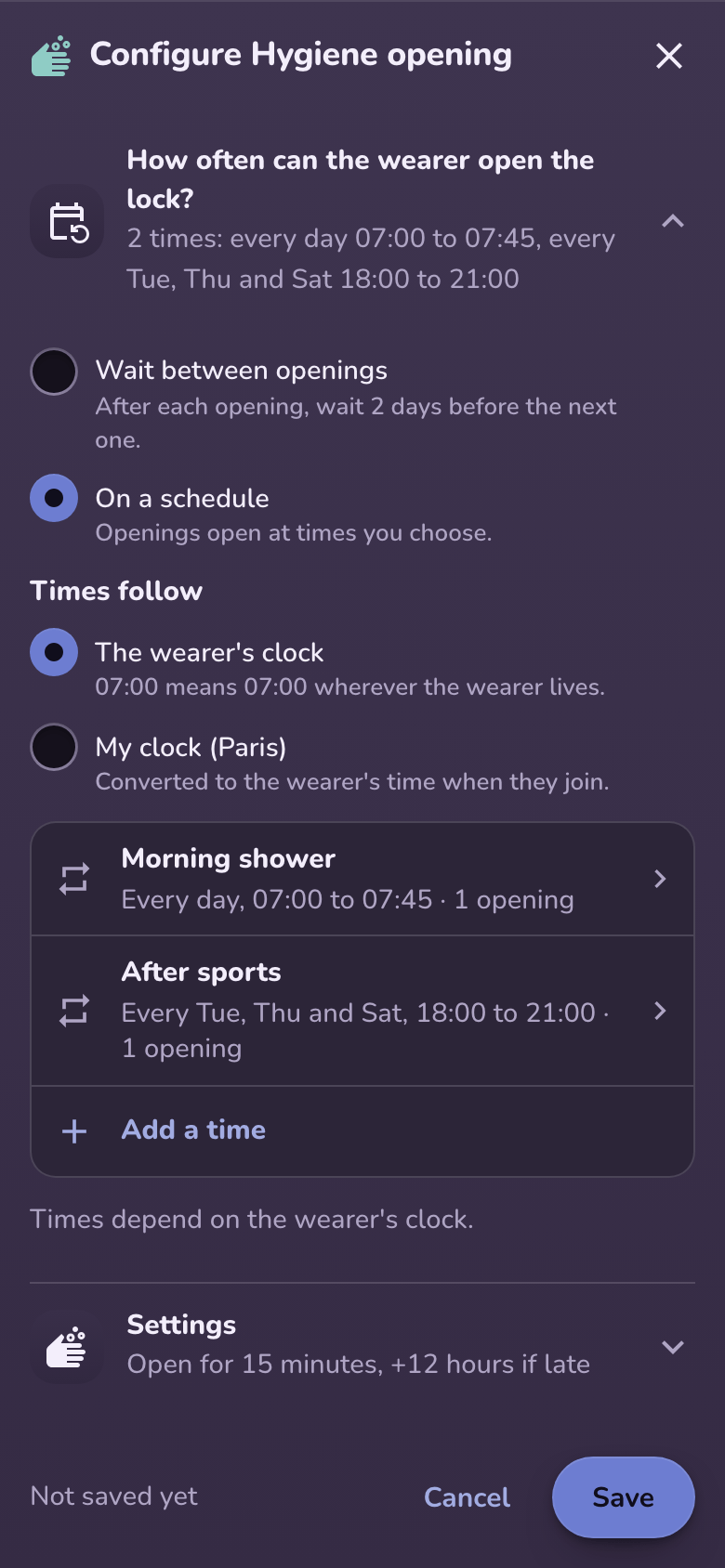
Times
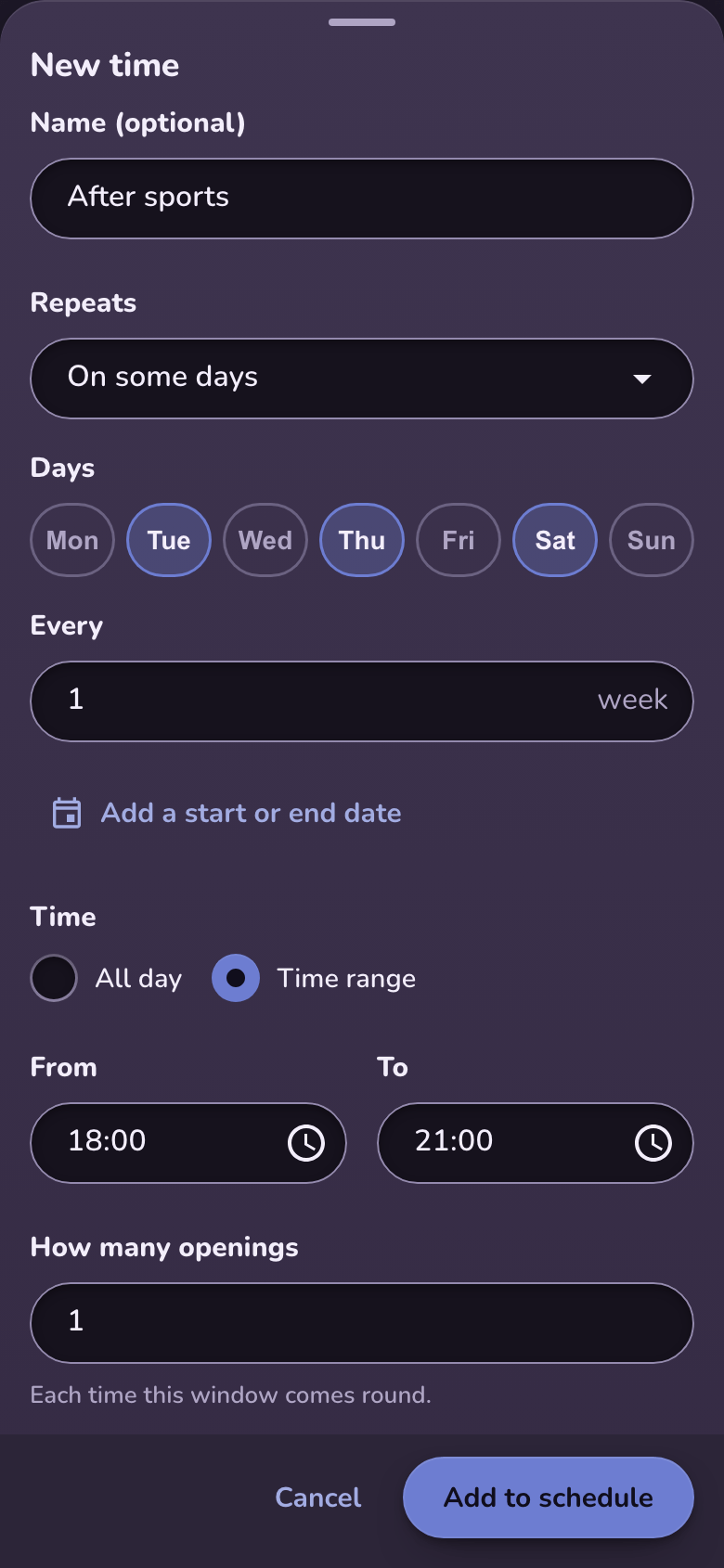
Each time in the list is one entry of the schedule:
- Name (optional): a short label shown everywhere the window appears, such as "Morning shower" or "After sports".
- Repeats: Once on a given date, Every day, or On some days of the week. With On some days, pick the days and choose to repeat every week, every two weeks, and so on. Add a start or end date limits a repeating time to a period.
- Time: All day, or a Time range with a start and an end. If the end is earlier than the start, the window ends the next day, for example from 22:00 to 02:00.
- How many: the number of actions available in each window, from 1 to 99.
When two windows overlap, an action uses the window that closes first.
Times follow
On a shared lock, choose whose clock the times follow:
- The wearer's clock: 07:00 means 07:00 wherever the wearer lives. This is the default.
- My clock: the times follow your own clock and are converted to the wearer's time when they join.
On a lock you set up for yourself or for a specific wearer, times follow the wearer's clock. The time zone is set when the schedule starts: it doesn't change if someone travels or updates their profile later.
Before joining
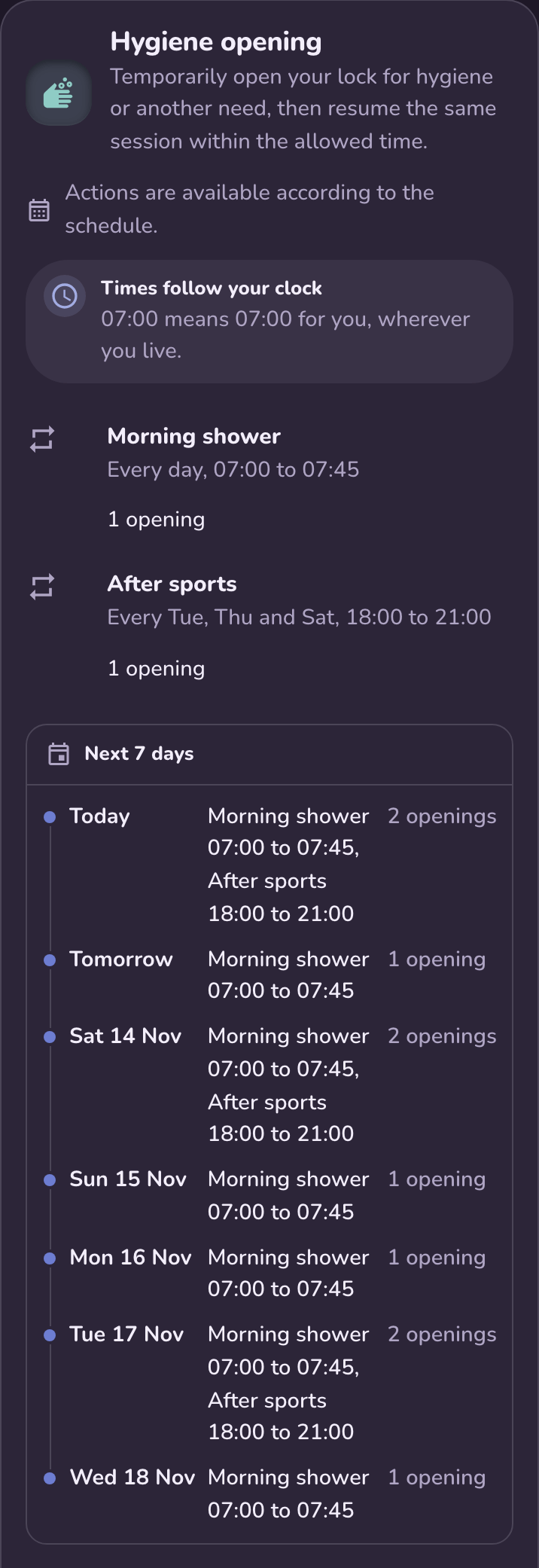
On a shared lock page, wearers see each time of the schedule and a preview of the next 7 days, in their own time.
During the lock
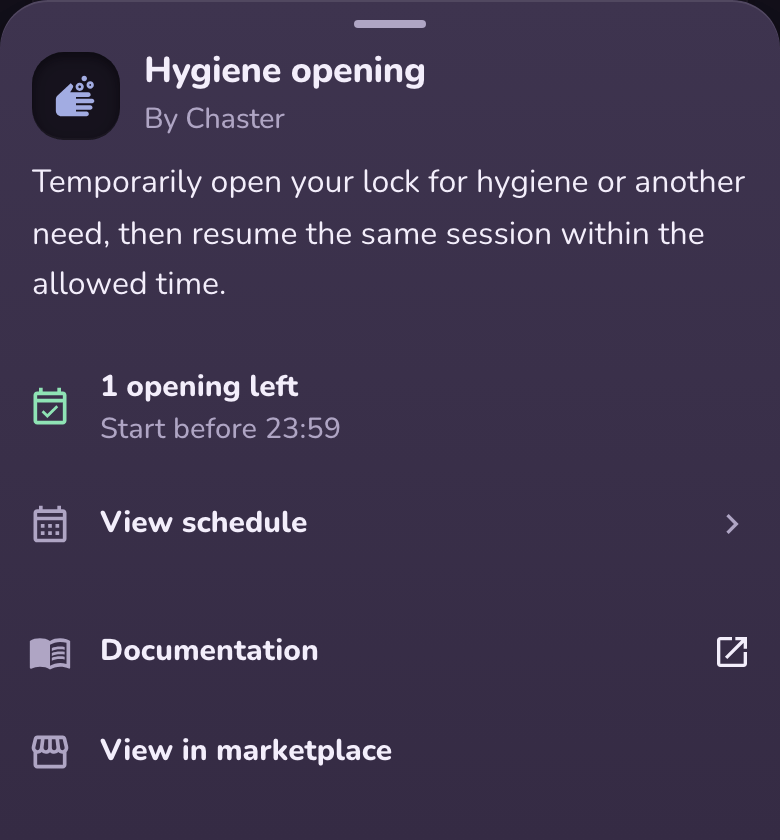
Tap the info button at the top of the extension page to see whether a window is open, how many actions are left, and when to use them. When nothing is open, it shows when the next window starts.
View schedule opens the schedule page:
- At the top, what is open now and what is left, or when the next window starts.
- A line telling you who can change the schedule, for example "You can ask Aaron for changes."
- Agenda: the upcoming windows, day by day. Go to date jumps to any day.
- Entries: the times of the schedule, grouped into repeating and one-time times.
- History: past windows, including the ones that were not used.
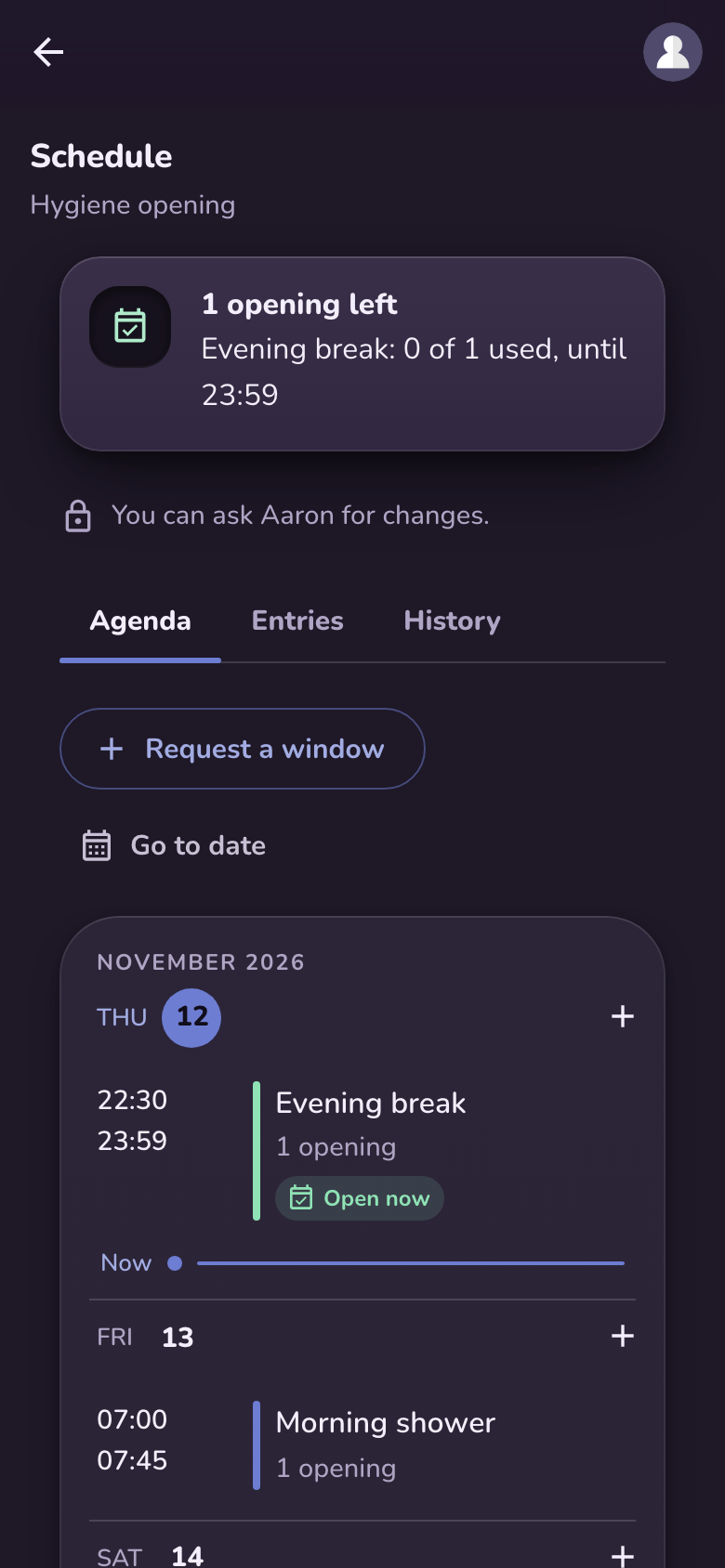
When the wearer and the keyholder live in different time zones, times are shown in the clock the schedule follows, with your own time underneath.
Changing the schedule
Who can edit it
The Edit schedules permission decides who can change a running lock's schedule directly. Nobody has it under the Standard preset. The Trusted keyholder preset gives it to the keyholder, and Full trust gives it to both.
Turning an extension into a schedule on a running lock needs both Manage extensions and Edit schedules. Turning it back to another mode only needs Manage extensions. Once the lock is running, the times are changed from the schedule page, not from the extension settings.
Editing windows
If you hold Edit schedules, tap a window in the agenda to Edit or Remove it, or tap + next to a day to add a one-time window. When you change a repeating window, choose what the change applies to:
- This occurrence: only that day.
- This and following: that day and every later one.
- All occurrences: all upcoming windows. Past windows stay in History.
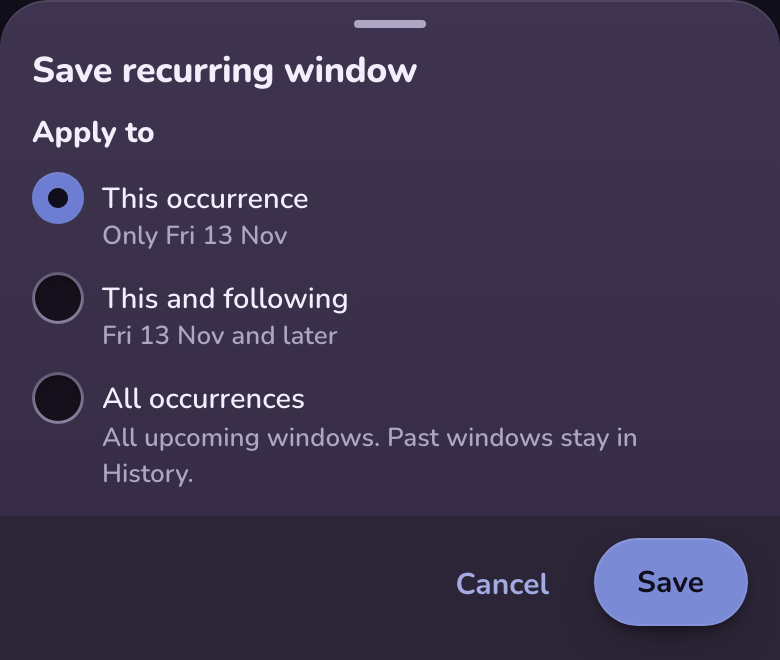
Changing a window never resets the actions already used in it. The other person receives a notification describing the change.
Requesting a change
Without Edit schedules, you can still ask for changes on a lock with a keyholder. The same buttons read Request a window, Propose a change or Ask to remove, and the form ends with Send request. Nothing changes until the other person approves.
Your request appears in the agenda as Proposed, and the other person receives a notification. They open the request to see the change next to the rest of that day, then:
- Approve applies the change.
- Decline leaves the schedule unchanged.
- Suggest another time declines the request and sends a different time back for you to review.
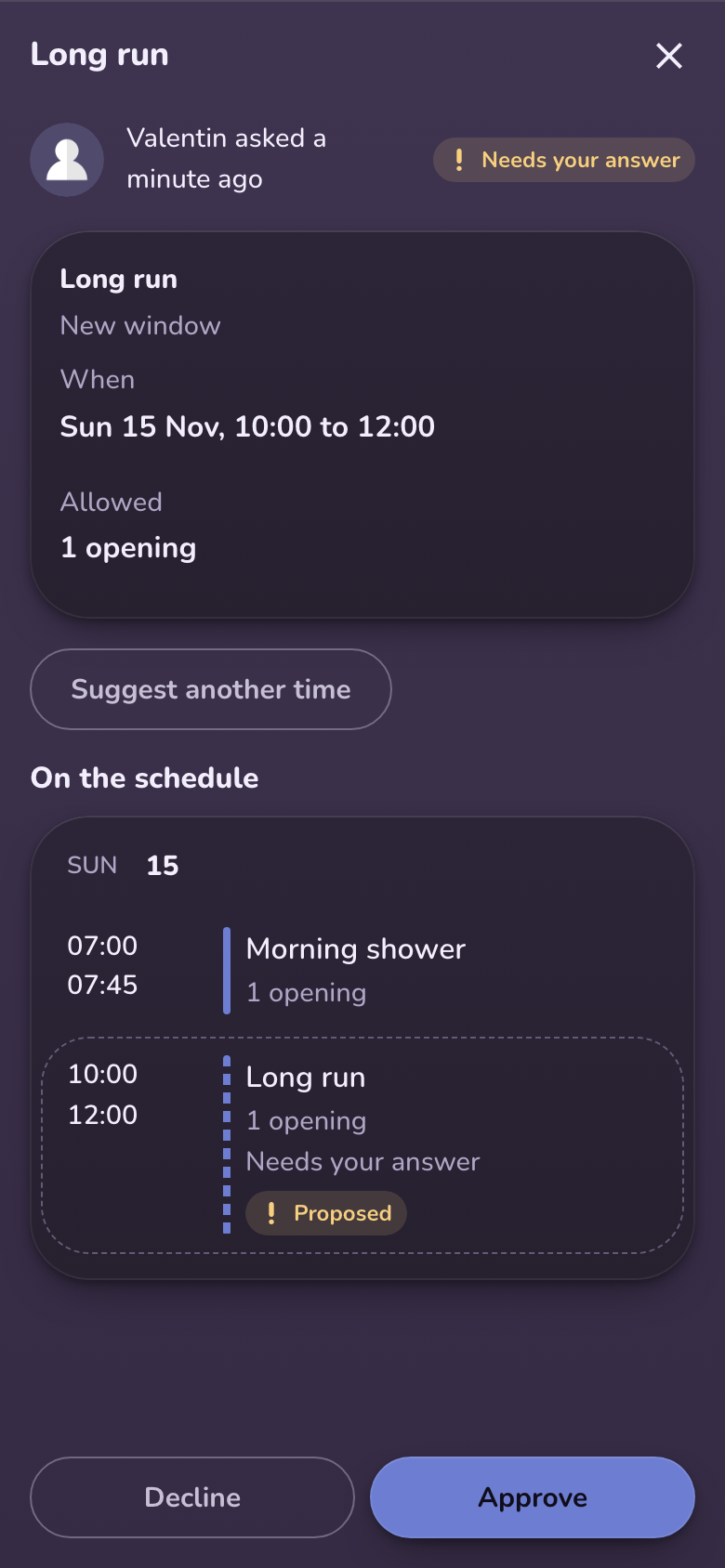
Until it is answered, you can Edit request or Withdraw it. You can send several requests at once, and each is answered separately.
A request expires when the window it is about has passed. Pending requests also close when the keyholder changes or the lock ends. In both cases, nothing changes on the schedule.
On a lock without a keyholder, there is nobody to ask: the schedule can only change if you gave yourself Edit schedules when creating the lock.