Install on your phone
What is a Progressive Web App?
Chaster is a Progressive Web App (PWA). A PWA is a type of website that can be installed directly on your device, giving you quick access from your home screen without needing to download anything from an app store. When installed, Chaster looks and behaves like a native application.
Why install Chaster?
Installing the PWA on your device provides several benefits over using it in a browser:
- Push notifications: Receive alerts for lock events, messages, and other activity. On iOS, push notifications are only available when the PWA is installed.
- Full-screen experience: Chaster runs without the browser toolbar, giving you more screen space.
- Quick access: Launch Chaster with a single tap from your home screen, just like any other app.
- Dedicated app switcher entry: Chaster appears as its own app when switching between applications.
On iOS, you must install the PWA to receive push notifications. This is an operating system limitation that does not apply to Android.
iOS
Using Safari
On iOS, PWAs can only be installed through Safari. Other browsers such as Chrome and Firefox do not support this feature.
- Open chaster.app in Safari, and open the menu.
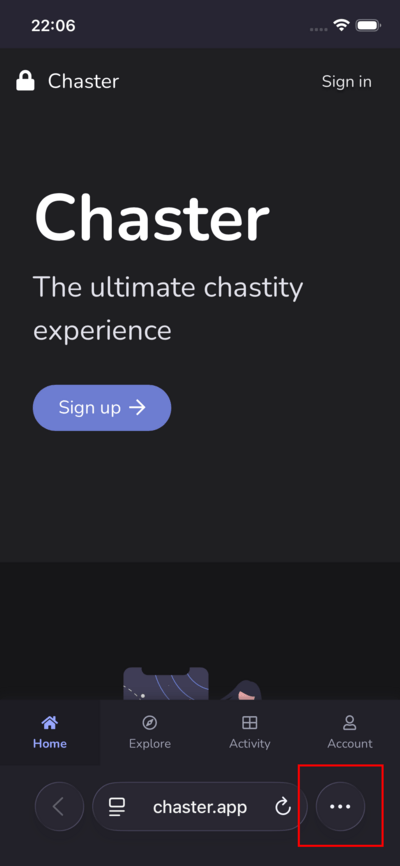
- Tap the Share icon (the square with an upward arrow) in the toolbar.
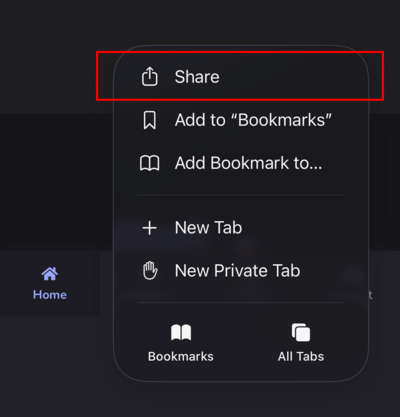
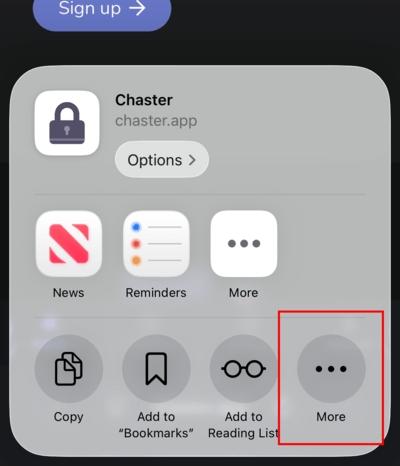
- In the share sheet, tap More (
...) to reveal additional options.
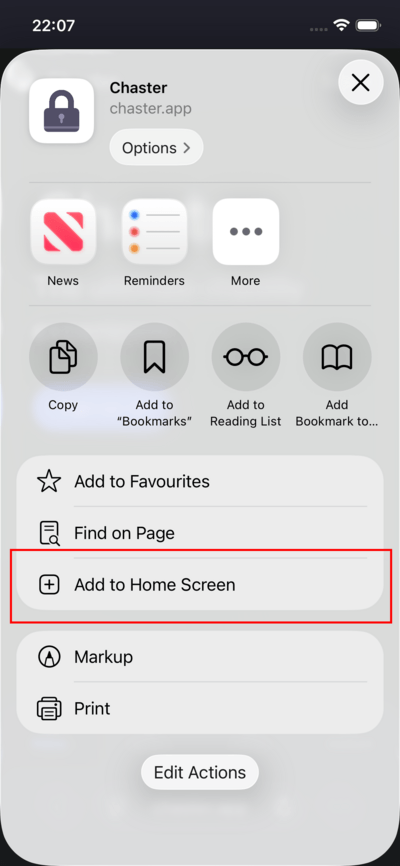
- Tap Add to Home Screen.
- Optionally rename the shortcut, then tap Add.
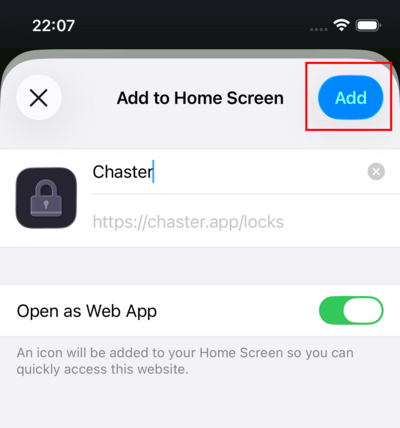
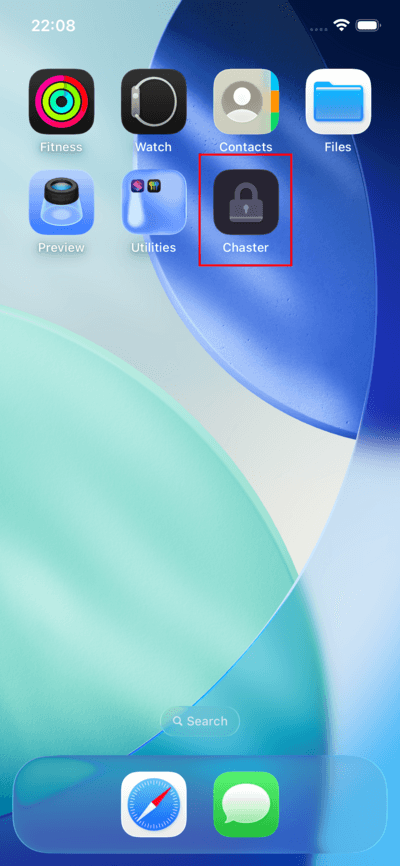
Chaster will now appear on your home screen.
Android
From the Chaster app
- Open chaster.app in Chrome and log in.
- Tap your Profile tab at the bottom of the screen.
- Scroll down to the Application section and tap Install on your device.
- Confirm by tapping Install in the dialog that appears.
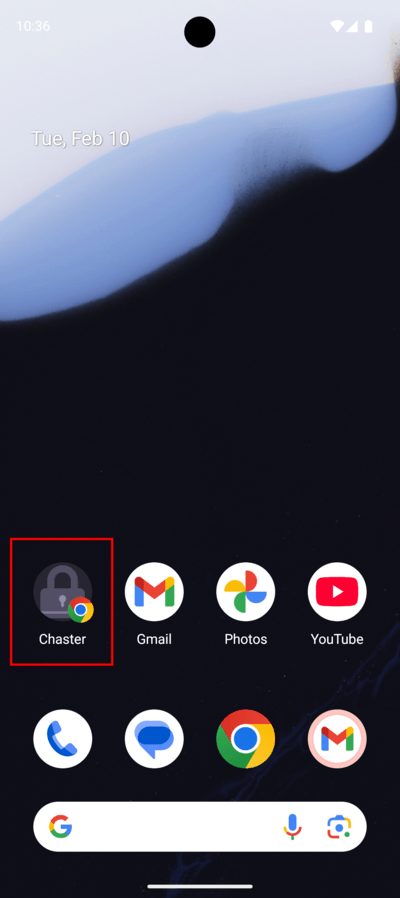
Chaster will now appear on your home screen.
The "Install on your device" option only appears when your browser supports PWA installation and the app is not already installed.
From the Chrome menu
If you don't see the in-app install option, you can install manually:
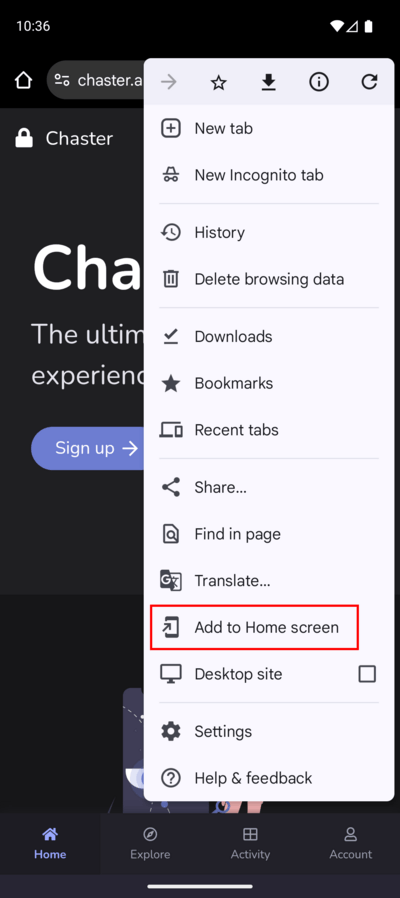
- Open chaster.app in Chrome.
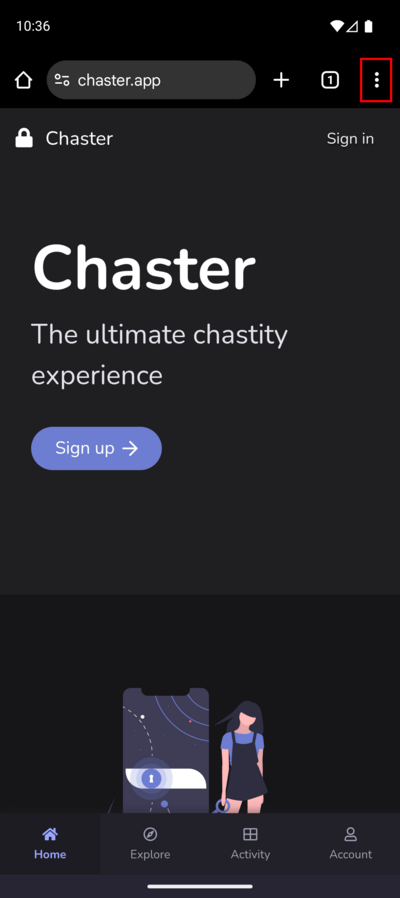
- Tap the menu icon (⋮) in the top-right corner and select Add to Home screen.
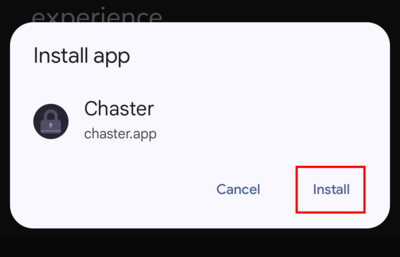
- Confirm by tapping Install in the dialog.
- On the next screen, tap Add to home screen to place the Chaster icon on your home screen.
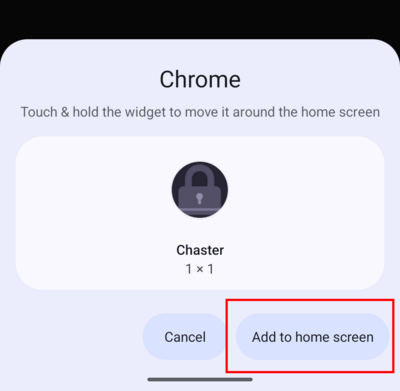
Chaster will now appear on your home screen.
Installation also works in other Chromium-based browsers such as Samsung Internet, Brave, and Edge.
Troubleshooting
"Install on your device" does not appear on Android
This option is only visible on the Profile page when your browser supports PWA installation. Make sure you are using Chrome or another Chromium-based browser. If you still don't see it, use the Chrome menu method: tap the menu icon (⋮) and select Add to Home screen.
I don't see "Add to Home Screen" on iOS
Make sure you are using Safari. On iOS, other browsers do not support PWA installation. Also verify that you are tapping the Share icon (not the bookmark icon).
How to uninstall
To remove Chaster from your home screen, long-press the icon and select Remove or Delete. This does not delete your account or any data, you can reinstall it at any time.