Unlock your lock
How to unlock your lock
Once you've set up and started your lock, you'll eventually reach the point where you can unlock it.
Conditions for unlocking
Your lock can be unlocked when all of the following conditions are met:
- The timer has elapsed.
- The lock is not frozen.
- No extensions are blocking the unlocking process.
- If a minimum lock time is set, the minimum duration has been reached.
Unlocking process
When your lock can be unlocked, you'll see an "Unlock" button on your lock page.
- Click the Unlock button to end your session.
- Your lock status changes to Unlocked.
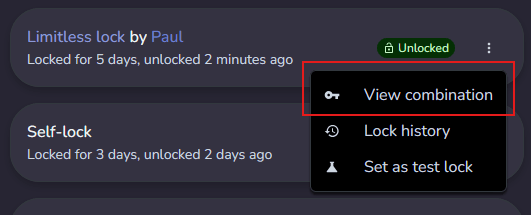
- Click View the combination in the lock actions to see your code or image.

Viewing your combination later
After unlocking, your lock stays on the Locks page with an Unlocked status until you archive it. You can view your combination again at any time while the lock is on this page.
- Go to the Locks page.
- Find your unlocked lock and open its actions.
- Click View the combination.
Your combination is displayed as either the code or the image you uploaded when you created the lock.
Viewing your combination on archived locks
Once you archive a completed lock, it moves off the main Locks page. To find it again:
- Go to the Locks page.
- Scroll to the bottom and click View archived locks.
- Find your lock in the list.
- Click the menu icon (three dots) on the lock row.
- Click View combination.
Limit lock time
If you've enabled the Limit lock time option when creating your lock, you have an additional safety feature. You'll be able to unlock your lock after the specified time limit, regardless of the lock's current status.
This feature ensures that you have a guaranteed unlock date, even if extensions or freezes are active.
Important notes
- Always keep an emergency key or unlock method accessible, especially for longer sessions.
- If you're using a physical device, make sure you can safely remove it before starting a lock in case of emergency.
- Remember that some extensions, like the shared link extension, can block unlocking until certain conditions are met (e.g., for the Shared links extension, reaching a specific number of votes).
By following these guidelines, you can ensure a safe and controlled end to your chastity session.
Early unlocks
Many users inquire about early unlocks for various reasons, including emergencies, finding a new keyholder, or simply wanting to end their session prematurely. While the mod team generally does not intervene in self-locks and cannot unlock running locks, there are specific situations where early unlocks are possible.
Self locks
If you are self-locked, early unlocks are only considered in cases of misconfiguration:
- Valid Reason: A misconfiguration that prevents the user from completing tasks or unlocking their lock. The most common issue is an incorrectly set penalty delay.
- In such cases, you should contact support for assistance.
Keyholder locks
For locks managed by keyholders, early unlocks may be possible under certain circumstances:
- Inactive keyholder: If the keyholder has been inactive for more than 7 days.
- Disabled or suspended keyholder account: If the keyholder's account is no longer active.
In such cases, you can either:
- Unlock the lock immediately.
- Continue running the lock as a self-lock, and enable session offer to potentially transfer the lock to a new keyholder.

Deserted locks
A deserted lock occurs when you archive a running lock before the timer has elapsed. Deserting means you chose to abandon your session commitment. Because of this, your combination is not given back to you automatically. Chaster requires you to explicitly acknowledge that you broke your commitment before you can access it again.
Recovering your combination
After a mandatory 7-day waiting period, a "Recover combination" option appears in the archived lock menu. Before that, the option is disabled and shows how many days remain.
To recover your combination:
- Go to your archived locks and find the deserted lock.
- Open the lock menu and click Recover combination.
- Read the confirmation modal carefully. It explains that you abandoned your session, that the recovery is permanently logged on your account, and that it may affect your stats in the future.
- Click Recover combination to confirm.
- Your combination becomes viewable from the lock menu using "View combination".
Recovering your combination does not erase the desertion. Your lock stays marked as deserted, and every recovery is permanently recorded. This may count against you in future stats and reputation features. If you find yourself recovering combinations regularly, consider setting shorter sessions or using the Limit lock time option instead.