Emergency unlock
Emergency unlock lets the wearer end an enabled lock immediately and see its combination, without waiting for the timer or the keyholder. It works even when the timer is frozen, an extension blocks normal unlocking, or the minimum lock time has not been reached.
Emergency unlock must never replace a physical emergency key or another independent way to remove your device. Keep that release method within reach. Your physical safety remains your responsibility: Chaster needs a working connection, cannot physically remove your device, and Chaster Support cannot unlock your lock for you.
Availability
On the wearer's lock page, Emergency unlock appears in the Lock group, below Settings, while the lock is running and emergency unlock is enabled.
If the action is missing, check the lock's settings. It is not available on a disabled lock, a deserted lock, or an older lock that has no emergency-unlock setting. Older running locks do not automatically gain emergency unlock.
Only the wearer can use emergency unlock. The keyholder cannot trigger it on the wearer's behalf, but can still use their normal unlock action.
Before starting a lock
Creating your own lock
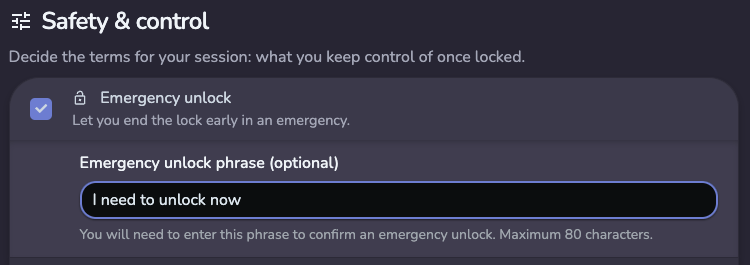
In the creation form's Safety & control section, review Emergency unlock before starting. Its initial value follows your account default.
When it is on, you can enter an optional confirmation phrase of up to 80 characters. Leaving it blank uses I need to unlock now.
The phrase is like a safeword: it lets you clearly say that you want the session to end. Chaster shows it when you unlock, so you do not need to memorize it. Typing it helps you make a deliberate choice before ending the session.
Creating a shared lock
The shared-lock creator chooses one of three options:
| Option | What the wearer agrees to when joining |
|---|---|
| Always available | Emergency unlock starts on. |
| Not available | Emergency unlock starts off. |
| Wearer decides | The wearer chooses on or off during joining. |
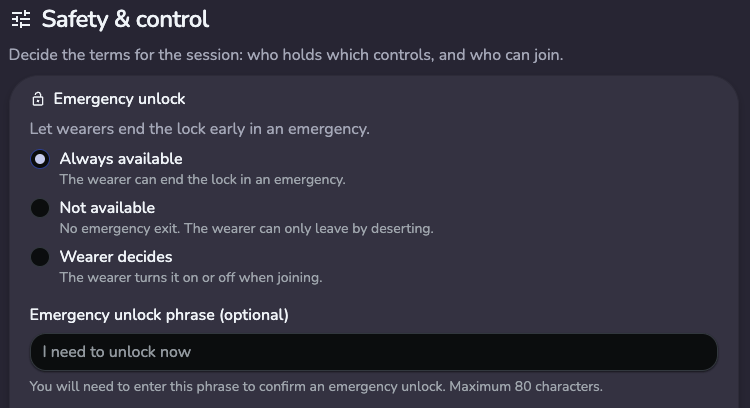
New shared locks start with Always available selected. For Always available and Wearer decides, the creator can set an optional confirmation phrase of up to 80 characters. The phrase is copied into each new session; public visitors do not see it.
Editing a shared lock configures future joins. It does not change the emergency-unlock choice or phrase in sessions that have already started.
Joining a shared lock
The shared-lock page shows its configured emergency-unlock option. Review it again on the Review your lock step alongside the permissions you are accepting.
For Always available or Not available, the consent step shows On or Off without a toggle. For Wearer decides, the toggle starts from your account default, and you can change it before joining.
An older shared lock without an emergency-unlock option creates a session with emergency unlock off. Do not assume the absence of a listed option means it is enabled.
Account default
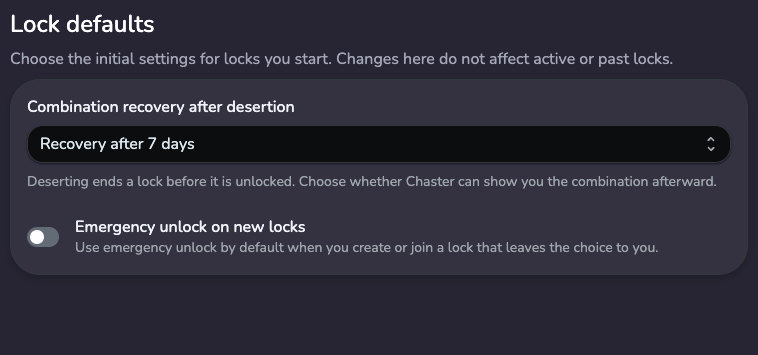
Go to Settings > Lock defaults and set Emergency unlock on new locks. It is on unless you have saved a different default.
This fills in the choice when you create a new self-lock or join a shared lock that uses Wearer decides. You can still choose differently before starting. It does not override a shared lock's imposed choice, update running or past locks, or change the default for shared locks you create.
Changing a running lock
Open the lock's Settings page and find Emergency unlock. Who can turn it on or off depends on the session's permission contract:
| Preset | Wearer can change the setting | Keyholder can change the setting |
|---|---|---|
| Standard | No | No |
| Trusted keyholder | No | Yes |
| Full trust | Yes | Yes |
| Custom | Only if granted | Only if granted |
These rules apply to self-locks too: check your permissions at creation. A self-lock's permission contract cannot be changed later.
Changes between on and off appear in lock history and notify the other party according to their notification settings.
While emergency unlock is on, either the wearer or keyholder can use Edit phrase, even without permission to change the on/off setting. The new phrase must contain 1 to 80 characters. An older lock showing Not available on this lock cannot gain this setting through the settings page.
If your keyholder has permission to change emergency unlock, they can turn it off. You can use emergency unlock only while it is enabled.
Using emergency unlock
- Open your running lock on the Locks page.
- In the Lock group, below Settings, select Emergency unlock.
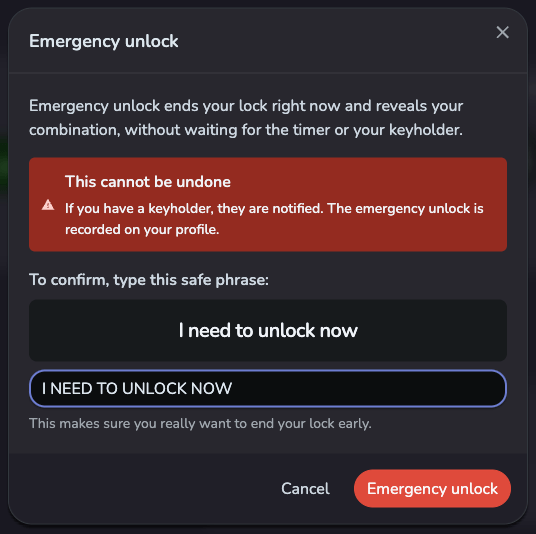
- Read the consequences and type the safe phrase displayed in the dialog. Letter case and extra spaces do not affect the match.
- If you have a keyholder, you can add an optional message of up to 500 characters. You do not need a message or the keyholder's approval to continue.
- Select Emergency unlock to end the session and see your combination.
After an emergency unlock
The session ends and its status becomes Unlocked. This cannot be undone. Your combination is available immediately; there is no desertion recovery waiting period. You can view the combination again and archive the ended lock later. Its archived row keeps an Emergency unlock label.
Emergency unlock is recorded in lock history. If you have a keyholder, they are notified; an optional message appears in the history and notification. Delivery through push or Discord depends on their notification settings.
Your wearer statistics count emergency unlocks separately from completed and deserted locks. The time spent locked still contributes to your time statistics, including shortest, longest, and average lock durations. The release appears in the emergency-unlock count instead of the completed-lock count. Test locks are excluded from profile statistics and emergency-unlock history.
If emergency unlock is unavailable
Use your independent physical release method in an emergency. For other ways to end a Chaster session, see Unlock your lock. A keyholder can unlock normally, and a configured maximum lock time provides a separate release limit.
Archiving a running lock deserts it and does not reveal the combination immediately. Recovery, when allowed, has a seven-day wait. Disabling combination recovery after desertion is a separate choice and does not stop an enabled emergency unlock on a running lock.