Control center
The control center holds the settings of the session screen: text size, sound, full screen, the status of your device, and the session rules. Open it from the status tray in the top corner of the session screen. When something needs your attention (sound blocked, screen able to turn off, low battery), the tray shows how many alerts there are.
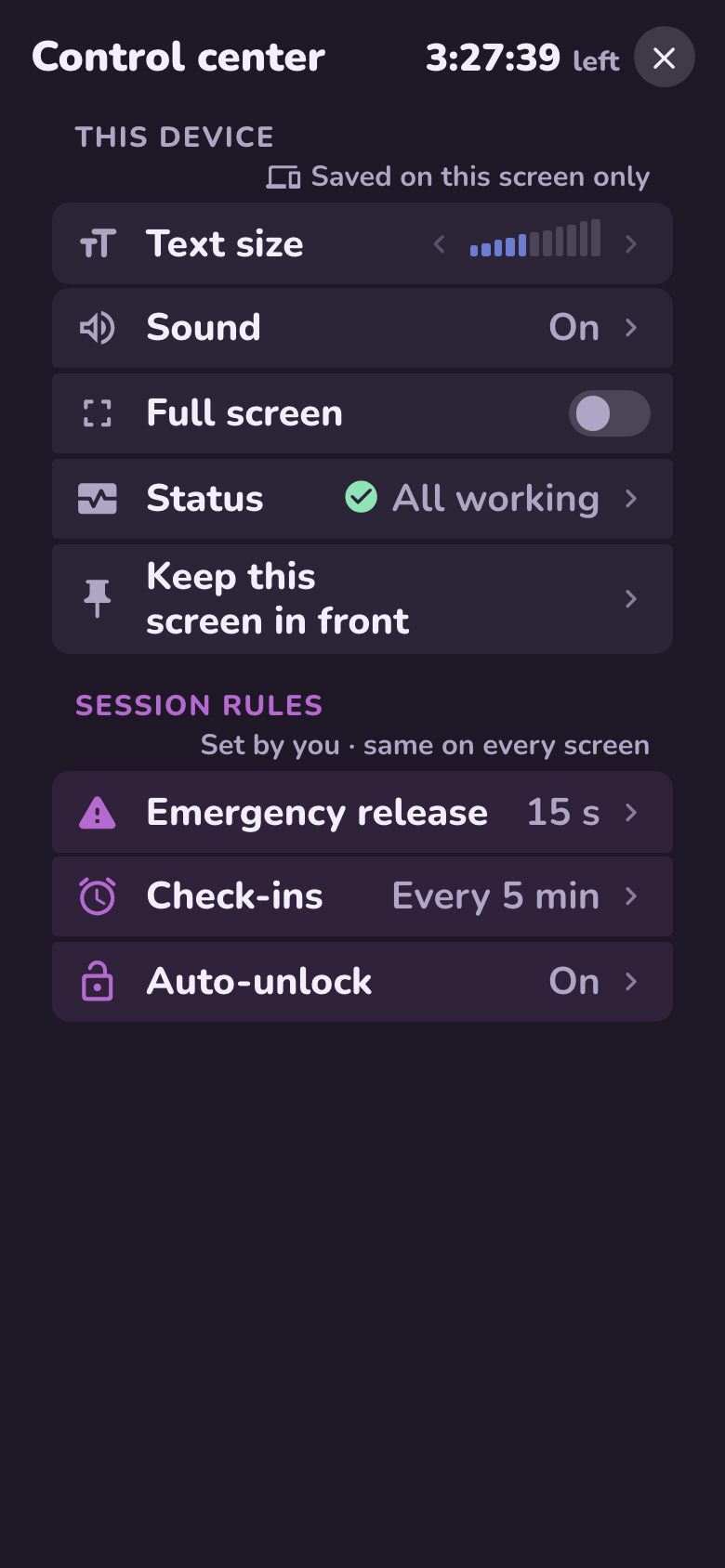
The control center has three parts:
- Needs attention: anything that could stop the screen from keeping you safe, with a quick fix such as Try again, Turn on or Check sound.
- This device: text size, sound, full screen, status and pinning. These are "Saved on this screen only": each phone, tablet or computer keeps its own.
- Session rules: the lock's safety settings, "same on every screen".
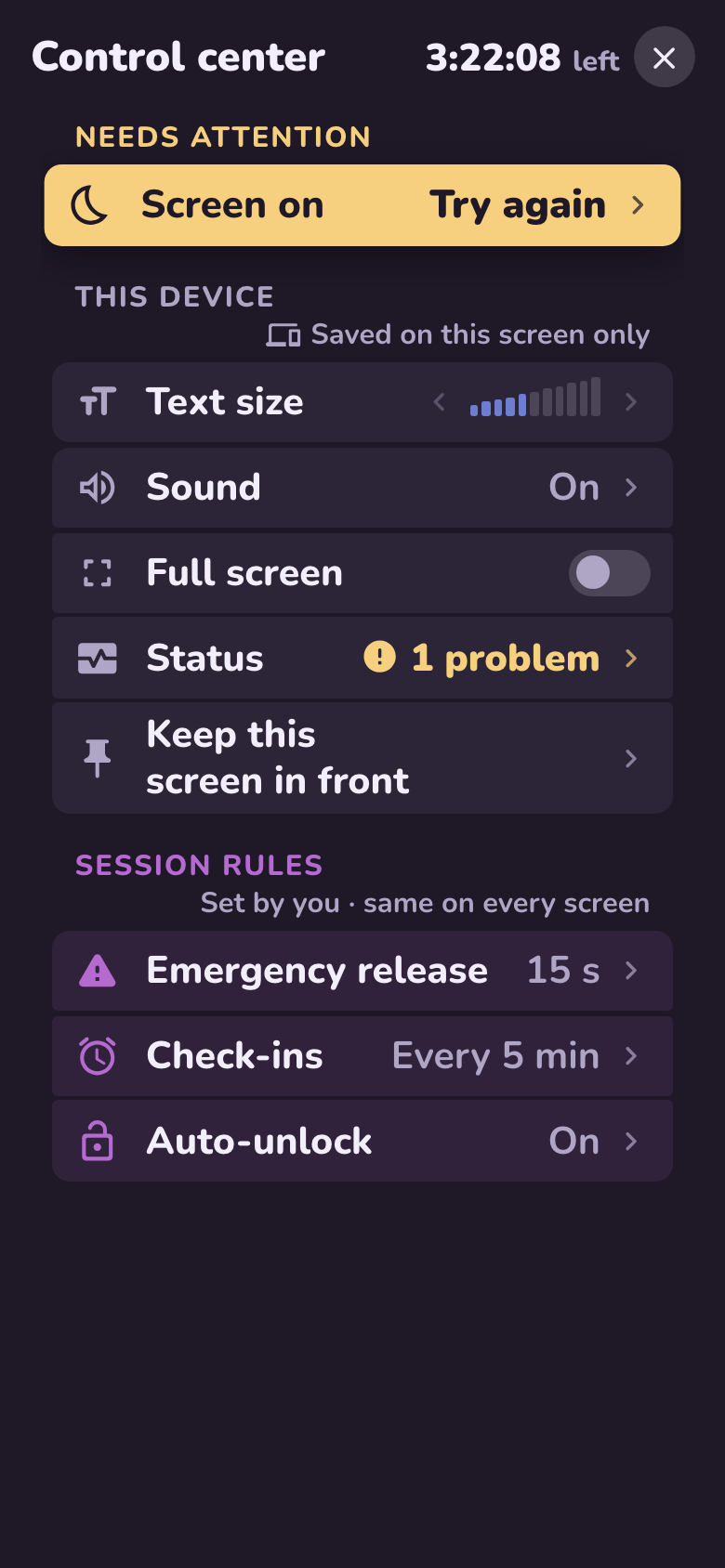
You can move through it with arrow keys or a remote: OK selects, Back goes back.
Before you start
Run through this list before you lock your restraints:
- Put the device where you can see and reach it from your position.
- Plug it in. Long sessions drain the battery, and the screen stays on.
- Turn sound on and run the delayed sound test from where you will be.
- Check that Screen on is On, or set your phone to never auto-lock.
- Pin the screen so you can't leave it by accident: Guided Access on iPhone, App pinning on Android.
- Check that Status reads All working.
Text size
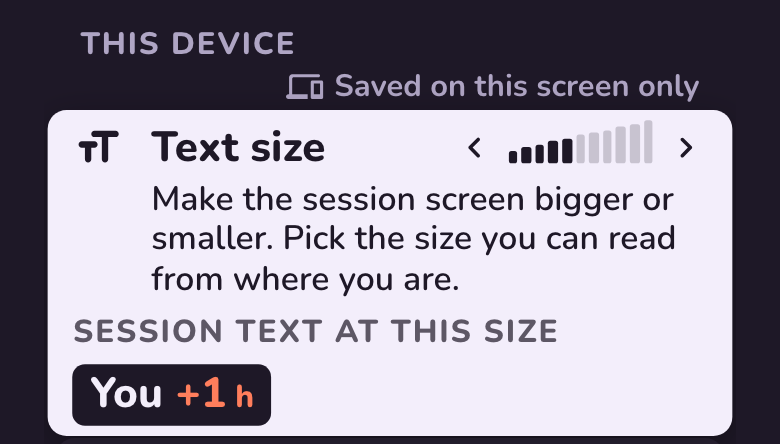
Text size makes the whole session screen bigger or smaller, so you can read it from where you are. There are 11 sizes. The default depends on your device (phone, tablet, computer or TV). Select the row to go back to the default.
Status
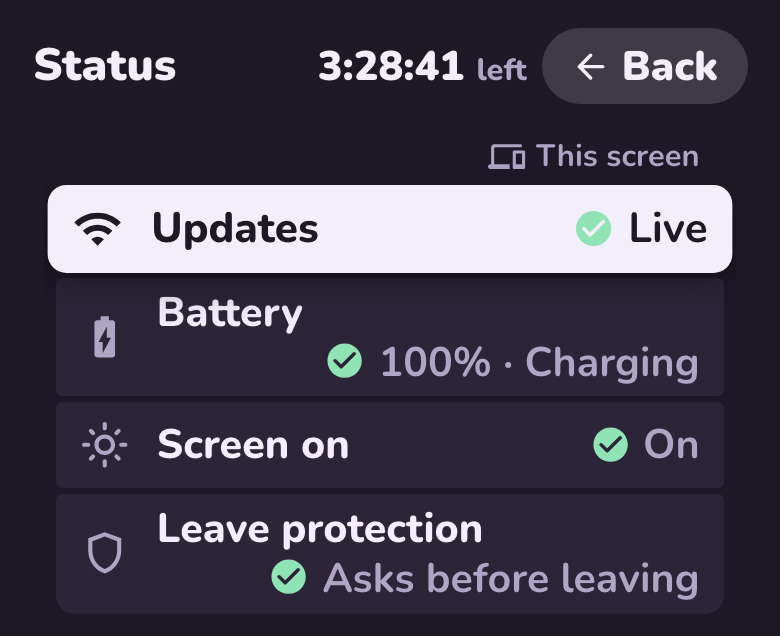
Status reads All working, or the number of problems. It checks:
| Row | What it means | If it's not OK |
|---|---|---|
| Updates | Live: changes from your keyholder show up as they happen. | Not updating: check your connection. Your release needs the internet. |
| Screen on | On: the screen won't go to sleep while the session is open. | Off: tap to keep it on. Unsupported: your browser can't keep the screen on; set your device's auto-lock to Never. |
| Battery | The battery level, and whether it's charging. | Low at 20% or less: plug in your charger. Some browsers, including Safari, don't share the battery level and show Unavailable. |
| Leave protection | Asks before leaving: the browser asks before this page closes. |
With sound on, the voice also warns you when the connection is lost for more than 30 seconds, when the battery reaches 20% and 10%, and when the screen may turn off.
Full screen
Full screen hides the browser bars and tabs. It appears only where the browser supports it, which excludes Safari on iPhone. On iPhone, installing Chaster on your home screen gives a similar result.
Keep the screen on
The session screen asks your device to keep the screen awake while it is open. Screen on in Status shows whether it worked. The device may still turn the screen off if:
- your browser doesn't support it (Unsupported);
- you switch tabs or apps (the screen asks again when you come back);
- the battery saver steps in.
As a backup, set your device not to turn off the screen during the session:
- iPhone and iPad: Settings › Display & Brightness › Auto-Lock › Never. With Guided Access, you can set this for the Guided Access session only, see below.
- Android: Settings › Display › Screen timeout, set it to the longest value. Some phones keep the screen on while charging with Developer options › Stay awake.
- Computer: plug it in and turn off sleep in the power settings.
Remember to change these settings back after your session.
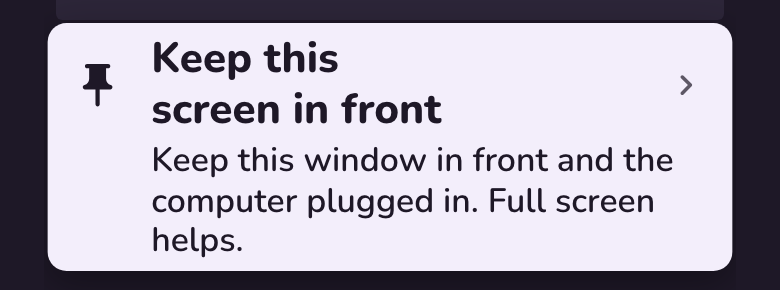
Keep this screen in front
The control center's Keep this screen in front row shows how to pin the screen on your device. Pinning locks the device to the session screen, so a stray tap or a notification can't take you out of it and silently stop your check-ins.
iPhone and iPad: Guided Access
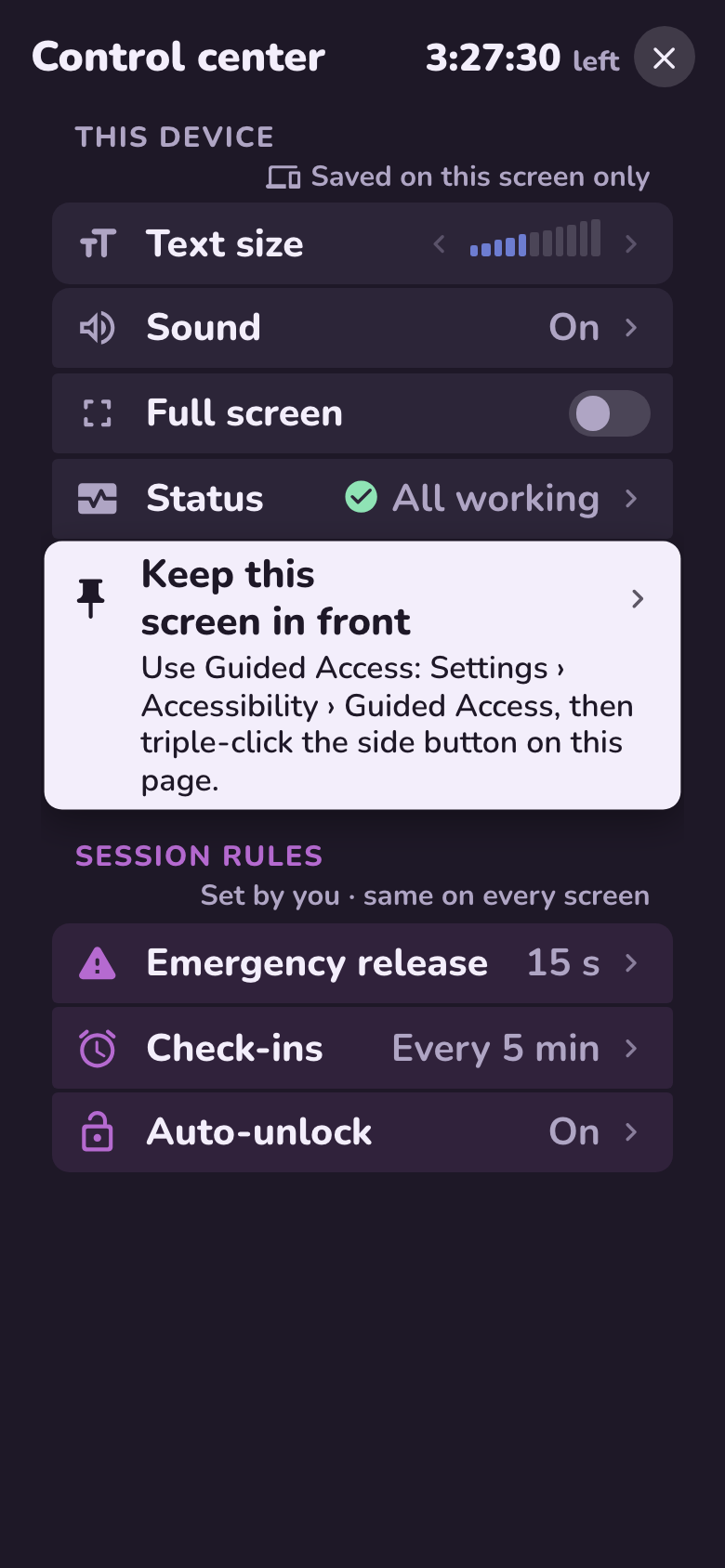
Apple disables Emergency Services and Crash Detection while Guided Access is on. To make an emergency call, you must end Guided Access first. Make sure you can still do that from your position, or don't use it.
Set it up once:
- Open Settings › Accessibility › Guided Access and turn Guided Access on.
- In Passcode Settings, set a passcode, and turn on Face ID or Touch ID so you can end it easily.
- Optionally, in Display Auto-Lock, choose Never: the screen stays on during Guided Access only.
For each session:
- Open the session screen.
- Triple-click the side button on iPhone or the top button on iPad (the Home button on devices that have one).
- Tap Start.
To end Guided Access, triple-click the same button again and enter your passcode or use Face ID or Touch ID, then tap End. On iOS and iPadOS 18 or earlier, double-click instead of triple-clicking.
Android: App pinning
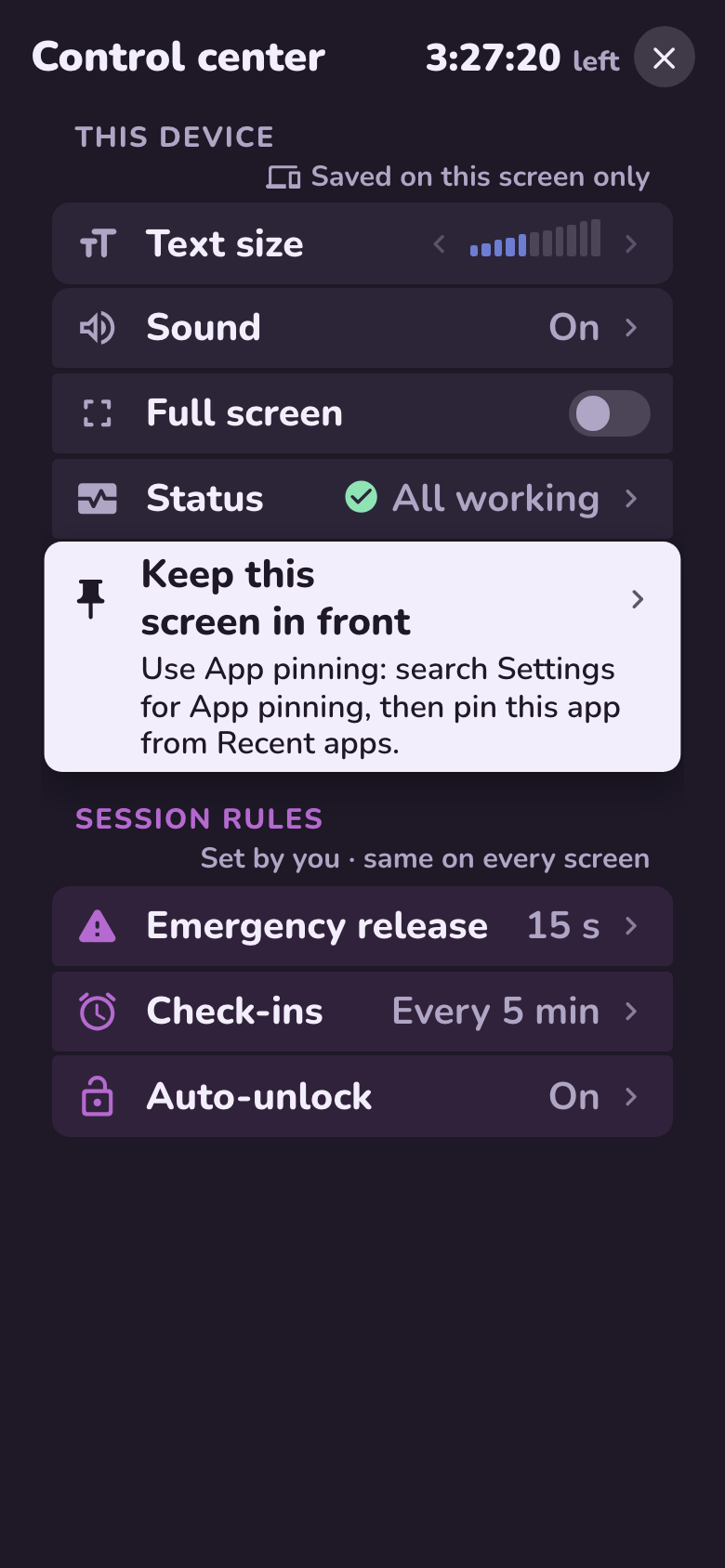
Set it up once:
- Open Settings, search for App pinning (also called Screen pinning, often under Security), and turn it on.
- Choose whether to ask for your PIN before unpinning.
For each session:
- Open the session screen.
- Open Recent apps (swipe up and hold, or tap the square button).
- Tap the icon at the top of your browser's or Chaster's window, then tap Pin.
To unpin, swipe up and hold (gesture navigation), or touch and hold Back and Recent apps together (button navigation).
Computer
"Keep this window in front and the computer plugged in. Full screen helps."
Sound
The session screen can play alarms and read your session aloud, so you don't have to look at it. Open Sound in the control center.
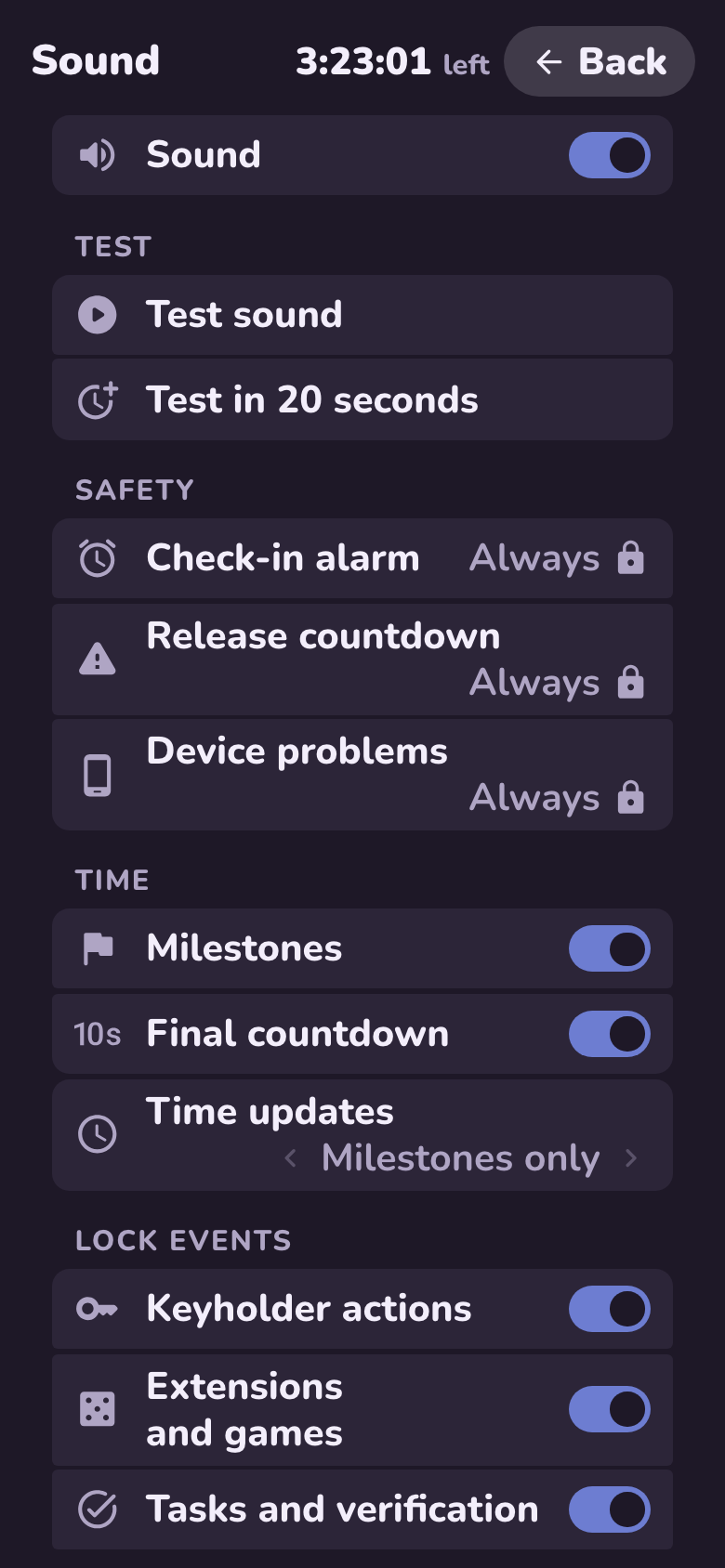
The Sound switch turns everything on or off. Turning it off also silences check-in alarms.
On iPhone and iPad, the browser only allows sound after a tap on the page. If sound gets blocked (for example after the phone locked), the screen says "Tap anywhere to turn sound back on".
"Sounds only play while this screen is open and awake. If your phone locks or you switch apps, they stop until you come back." When you come back, the screen sums up what you missed.
Safety
Always on while sound is on:
- Check-in alarm: soft chime, then louder as your grace runs out.
- Release countdown: countdown, release, "You're free".
- Device problems: connection lost, low battery, screen turning off.
Time
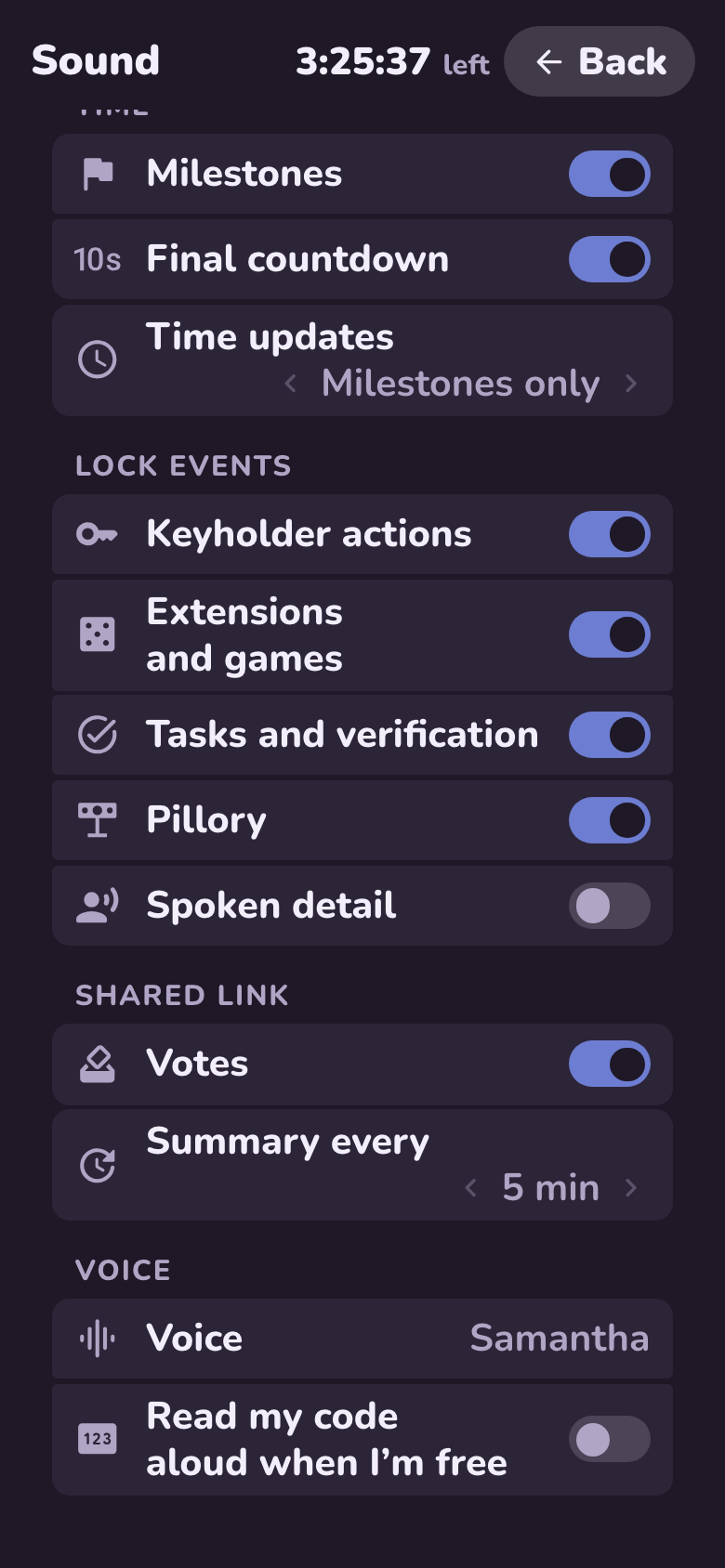
- Milestones: 1 hour, 30, 10, 5 and 1 minute left. On by default.
- Final countdown: the last 10 seconds. On by default.
- Time updates: says how much time is left at a regular interval: Milestones only (default), or every 5, 10, 15, 30 or 60 minutes.
When your timer is hidden, the voice never says the time left: it says how long you've been in session instead.
Lock events
Each can be turned off separately. All are on by default except Spoken detail.
- Keyholder actions: time added or removed, freeze, timer hidden.
- Extensions and games: wheel of fortune, dice, random events, penalties.
- Tasks and verification: new task, task done, picture requested.
- Pillory: put in and out of the pillory.
- Spoken detail: also dice values, wheel spins, check-in confirmations and setup changes.
Shared link
- Votes: a summary of the votes on your shared link.
- Summary every: how often votes are read out: 1, 5 (default) or 15 minutes.
Voice
- Voice: the voice comes from your device's system voices.
- Say my keyholder as: how the voice calls your keyholder, for example a nickname. Leave it empty for "Your keyholder".
- Read my code aloud when I'm free: off by default. Anyone nearby will hear it.
Test the sound
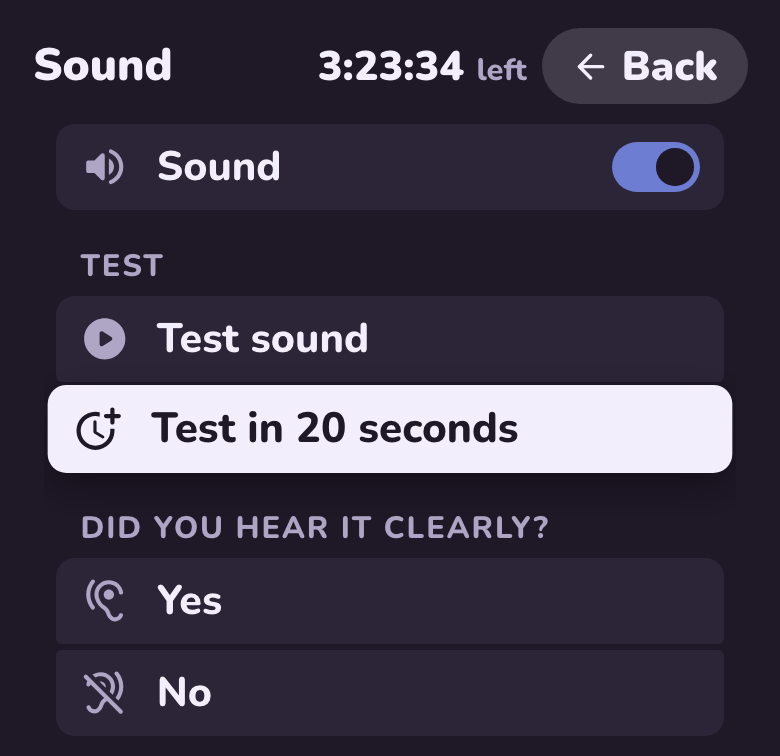
- Test sound plays the check-in alarm and voice now.
- Test in 20 seconds gives you time to walk back to where you will be, to check you can hear it from there.
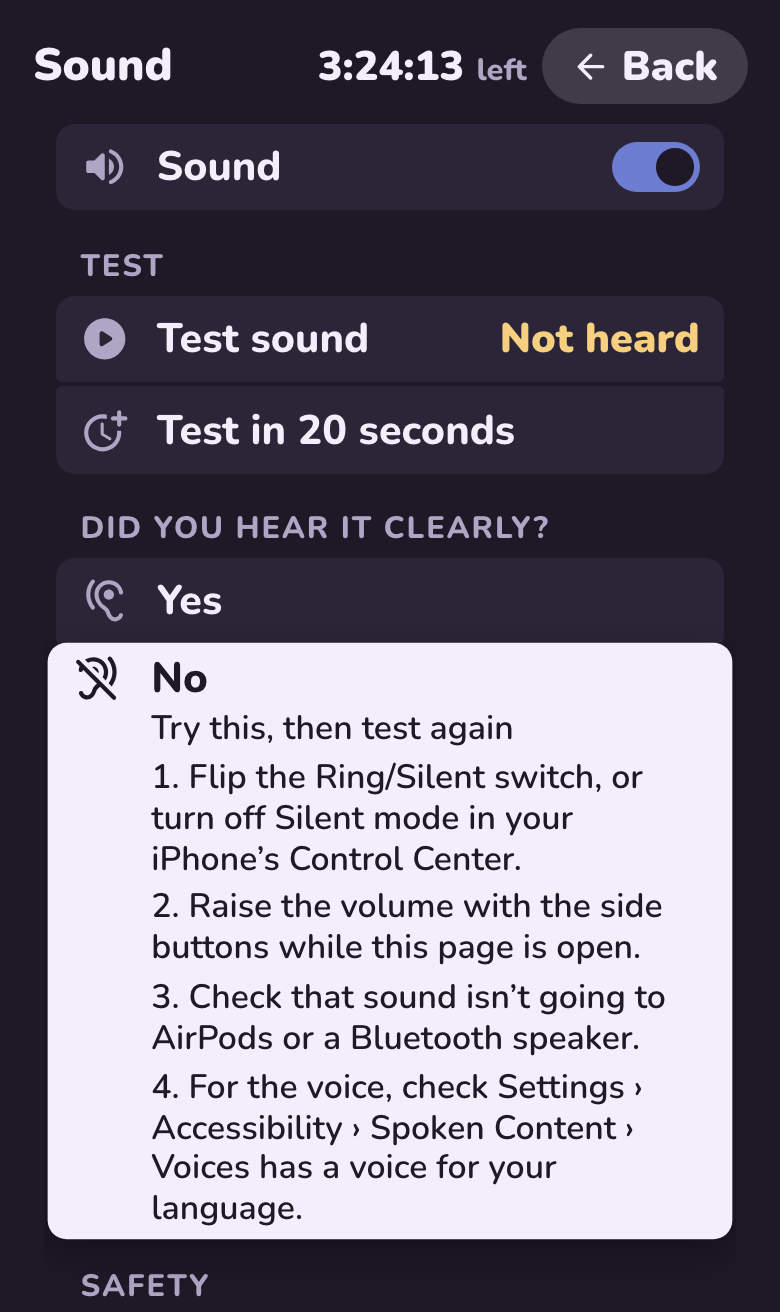
After the test, answer Did you hear it clearly?. If you answer No, the screen suggests fixes for your device, under Try this, then test again.
Sound troubleshooting
- iPhone silent: flip the Ring/Silent switch, or turn off Silent mode in Control Center. Raise the volume while the page is open. Check that sound isn't going to AirPods or a Bluetooth speaker.
- Android silent: raise Media volume, not only the ringer, and turn off Do Not Disturb.
- No voice for your language on this device: add a voice in your device's accessibility settings (on iPhone, Settings › Accessibility › Read & Speak › Voices; on Android, search Settings for text-to-speech), then reload the page. You can also switch Chaster to a language your device has a voice for, in Settings › General › Language.
- Your browser hides the device voices: a privacy setting or content blocker is hiding them. In Brave, tap the lion icon and turn Shields off for Chaster, or open Chaster in Safari (iPhone) or Chrome (Android).
Session rules
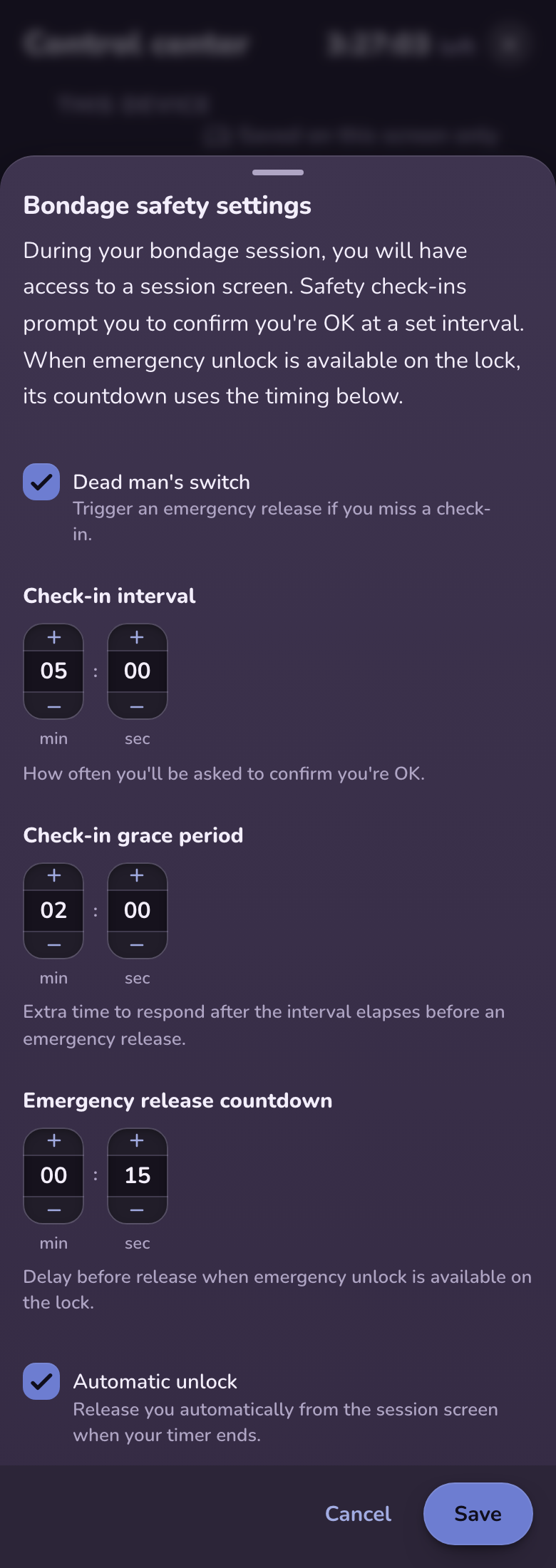
Session rules shows the lock's bondage safety settings, and who set them:
- Emergency release: the countdown, or Off.
- Check-ins: "Every 5 min, 2 min to answer", or Off.
- Auto-unlock: On or Off.
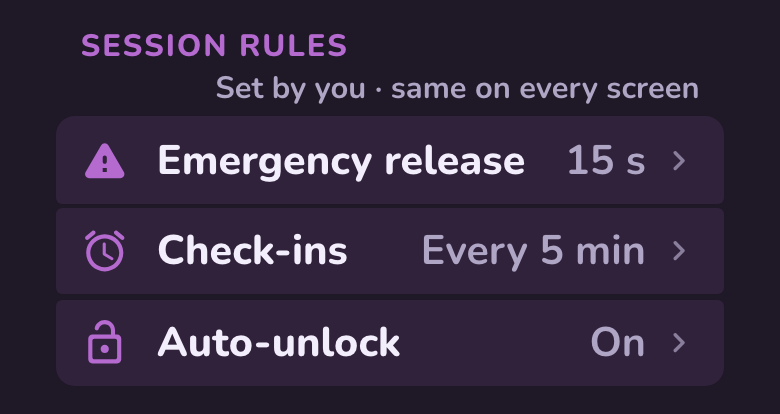
If you have the Edit the bondage safety settings permission, select a rule to change the settings.
Otherwise, it reads "Only your keyholder can change this." or "This can't be changed during the session." Changes apply at once, on every screen.