Session screen
The session screen is where a bondage lock runs. It shows your timer in large type you can read from across the room, runs your safety check-ins, and releases you when the time is up. Open it right after locking your restraints, and keep it open until you are free.
Open the session screen
On Locks, the card of a running bondage lock has an Open bondage session button. It opens the session screen.
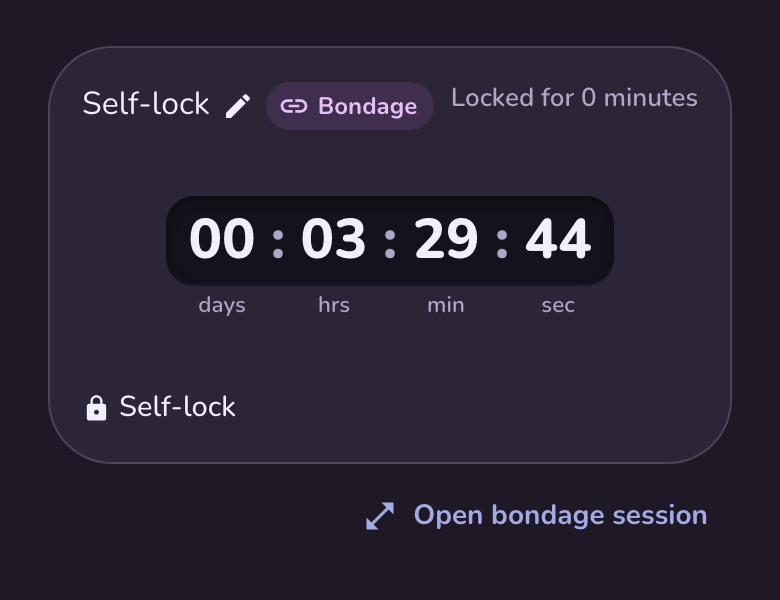
Only the wearer can open it. A keyholder, or a lock that isn't a running bondage lock, is sent back to the locks page.
Keep the screen open
Safety check-ins, the emergency release and automatic unlock run on your device, on this page. Your lock stays locked if you leave it, but:
- if you close the page or go back, check-ins stop. The next time you open the screen, the check-in cycle starts again from zero;
- if your phone locks, sleeps, or you switch apps, the browser pauses the page. When you come back, the screen catches up, and if a check-in was missed in the meantime, you are released at that moment;
- if you lose your connection, a release can't reach Chaster until it's back.
Keep the device on, unlocked, charged and connected for the whole session, and pin the screen. See Control center.
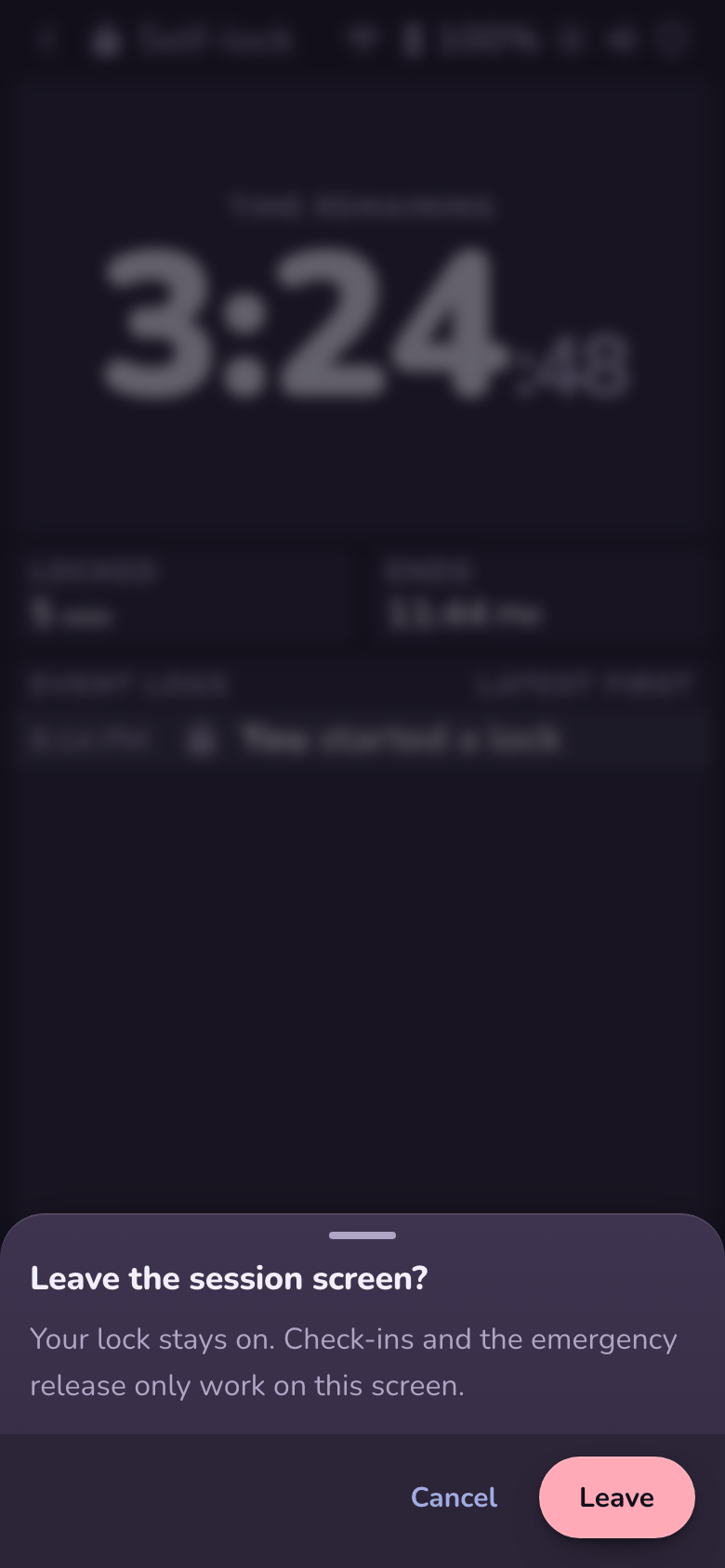
When you try to leave, the screen asks first:
Leave the session screen? Your lock stays on. Check-ins and the emergency release only work on this screen.
The main screen
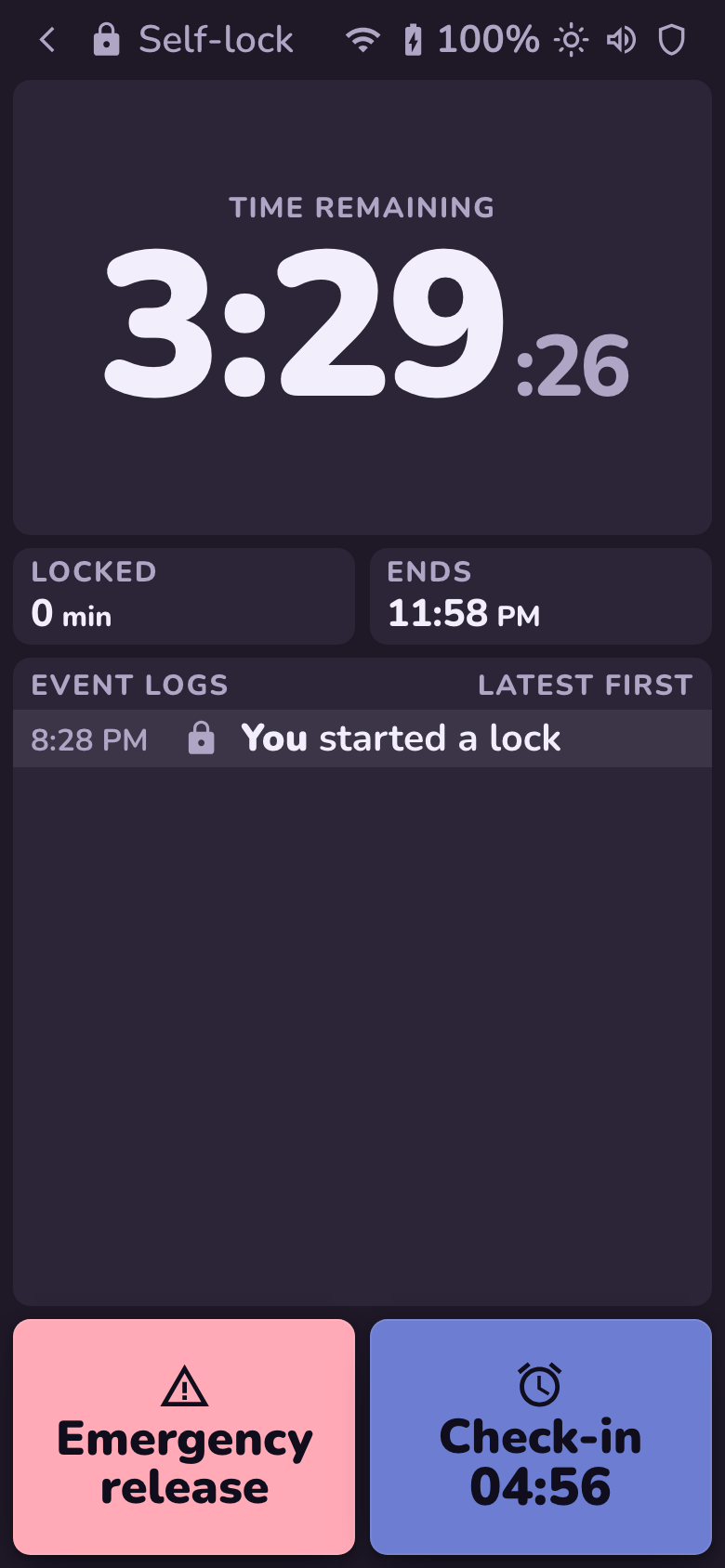
From top to bottom:
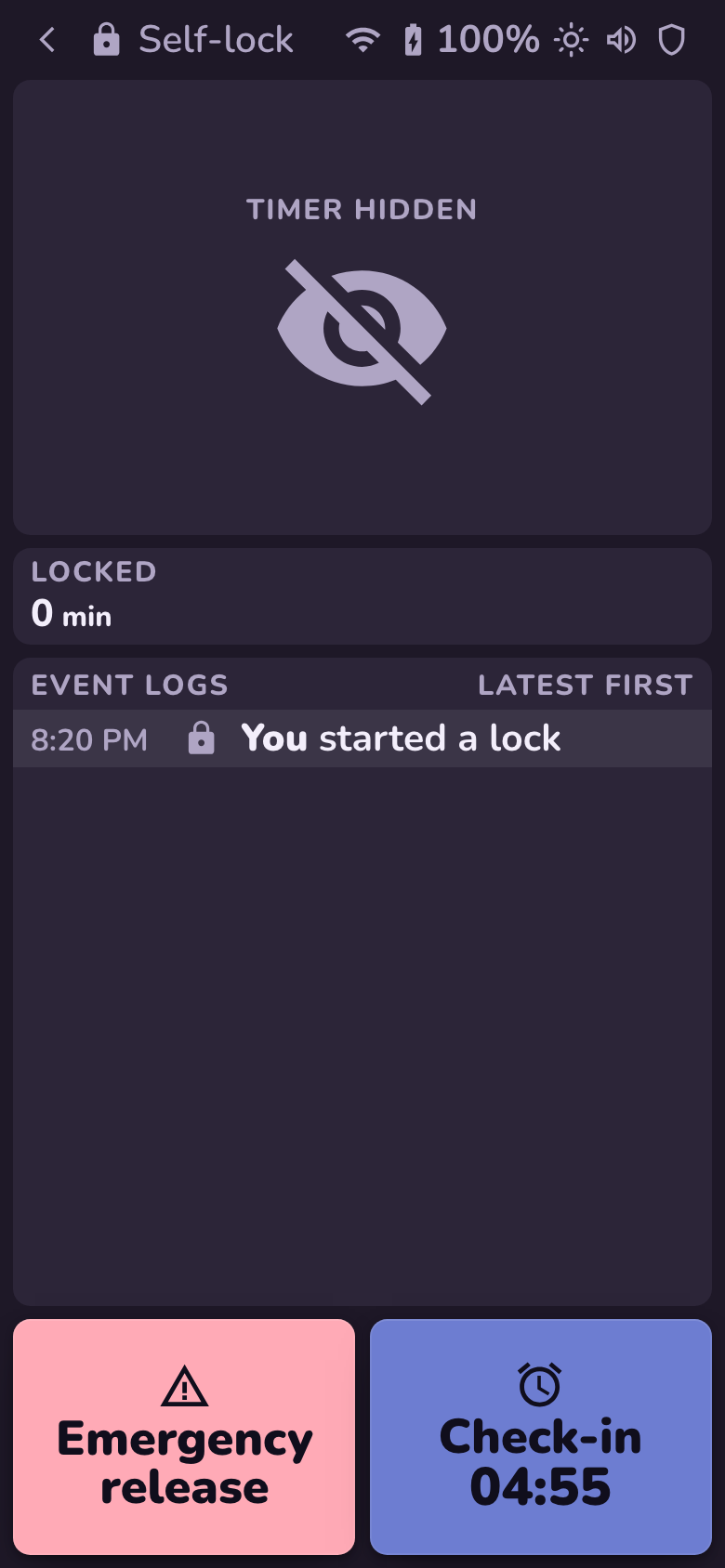
- Header: "Self-lock", or your keyholder's name and avatar. On the right, the status tray shows the connection, battery, screen on, sound and leave protection icons. When something needs your attention, it shows a warning with the number of problems instead. Tap it to open the control center.
- Timer: the Time remaining until the end of your lock. The timer reads Frozen with a snowflake when your timer is frozen.
- Locked: how long you have been locked.
- Ends: when your lock ends: a time if it's today, a weekday and time within the week, a date otherwise. It is hidden when the timer is frozen or hidden, and on small phones.
- Events: what just happened on your lock: time added or removed, freeze, extensions, tasks, verification pictures, votes. Most screens show a list of recent events, latest first; on small phones, only the latest one fits.
- Emergency release and Check-in buttons, at the bottom where they are easy to reach. The check-in button shows the time left before your next check-in.
On a tablet or computer, the same screen uses the extra space for a board you can read from a distance.
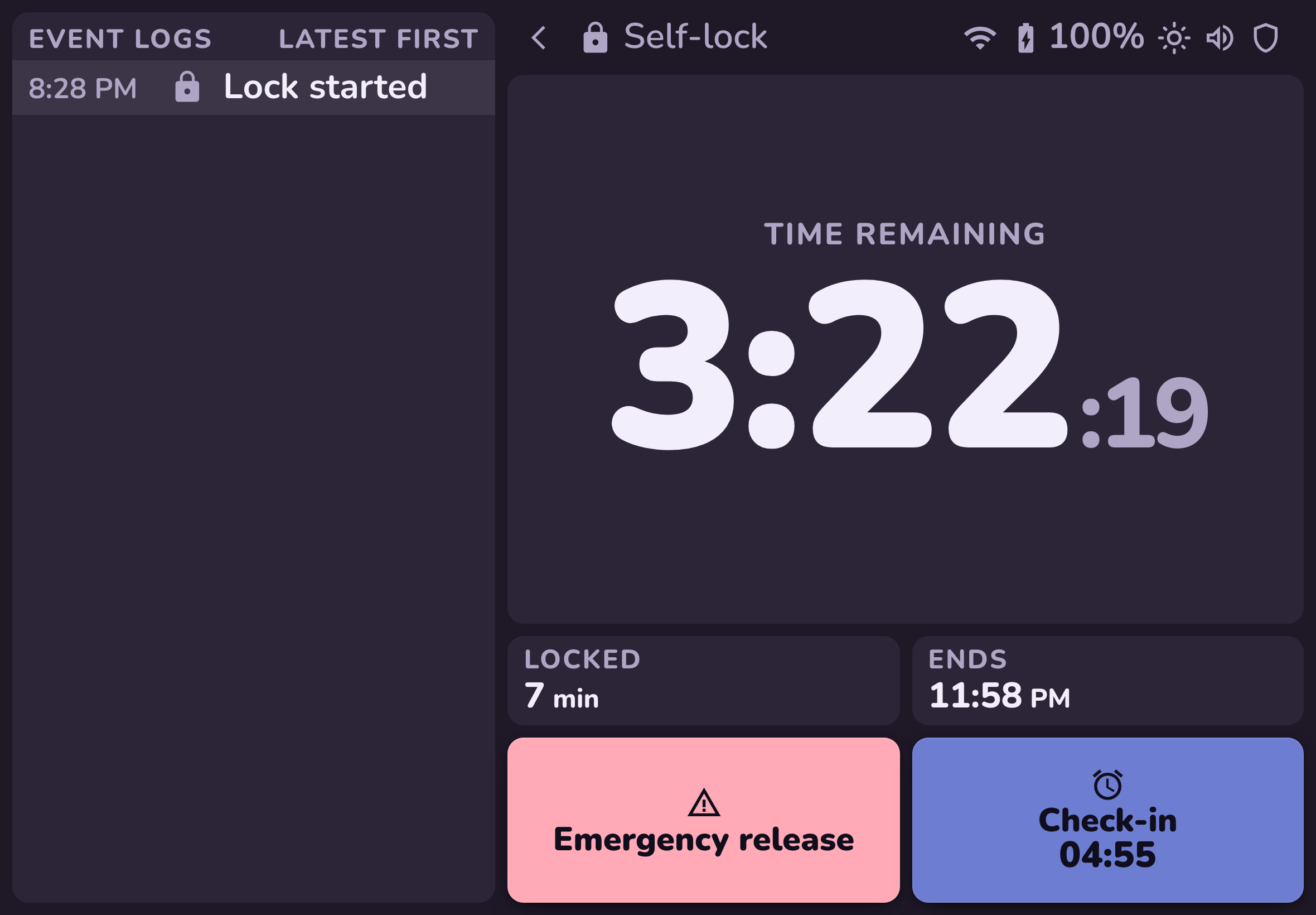
The screen updates every few seconds and as soon as your keyholder or an extension changes your lock.
Hidden timer
If your timer is hidden, the timer shows Timer hidden with an eye icon instead of the remaining time, and the end time is hidden. The voice never says how much time is left: it says how long you've been in session instead.
Safety check-ins
When the dead man's switch is on, the screen asks you to confirm you're OK at the check-in interval set on the lock (every 5 minutes by default).
- The Check-in button counts down to the next check-in. You can tap it at any time to check in early and restart the interval.
- When the interval is up, the screen switches to Safety check-in required, with a Confirm within countdown: "Confirm you're OK to keep the session going."
- Tap I'm OK. The countdown resets and a tone confirms it. With Spoken detail on, the voice also says when the next check-in is due.
- If the grace period runs out without an answer, the lock is released ("Check-in missed. Releasing the lock.") and the screen shows your combination.
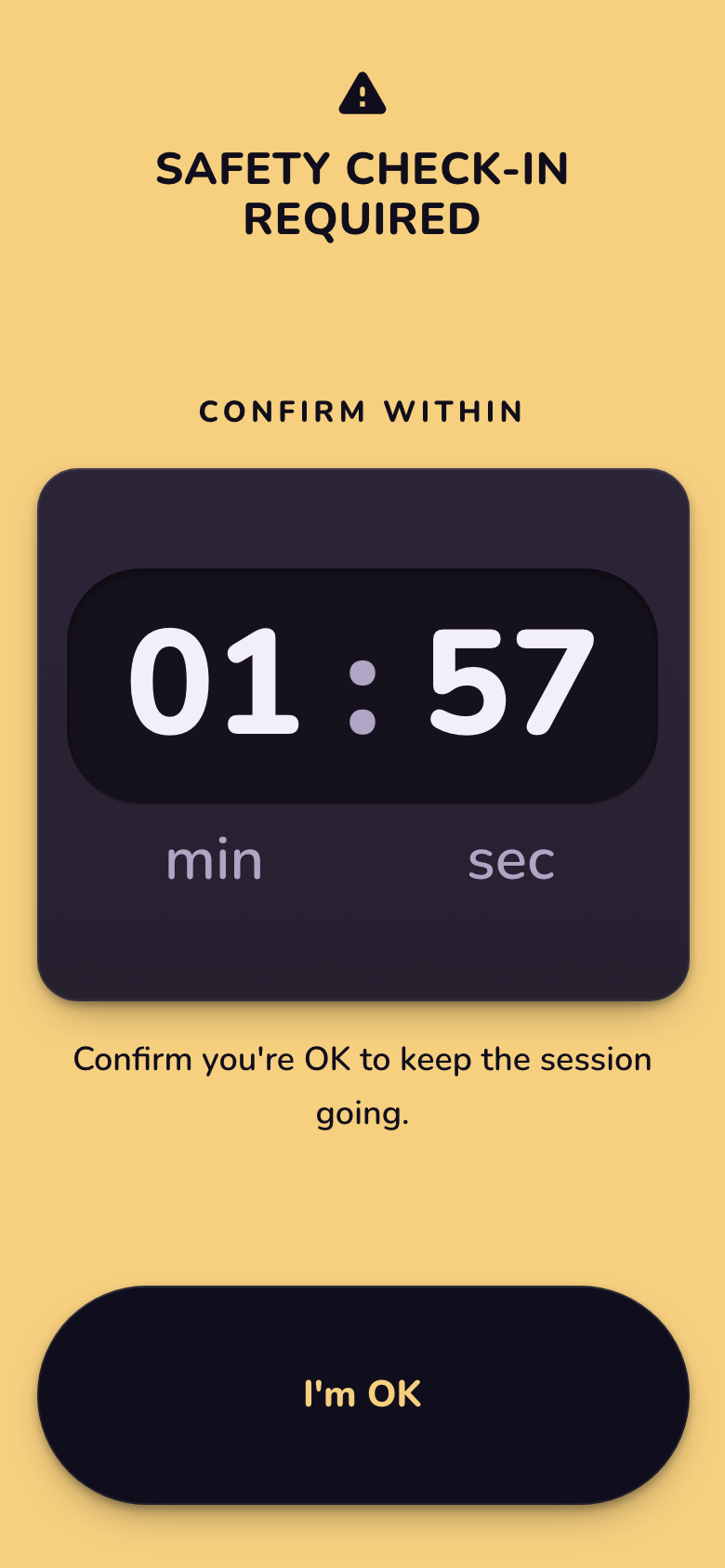
With sound on, the alarm gets more insistent as the grace period runs out: a soft chime every 10 seconds, then every 5 seconds once half the grace period is gone, then every second for the last 20 seconds, with spoken reminders ("1 minute left to check in."). The first alarm of a session says where to tap: "Check-in. Tap the bottom of the screen if you're OK."
A missed check-in counts as an emergency unlock: the lock history shows it as one, and your keyholder is notified that you used the emergency unlock.
When the dead man's switch is off, there is no Check-in button and no alarm.
Emergency release
The Emergency release button appears when emergency unlock is on for the lock. It is for ending the session early, at any time, for any reason.
- Tap Emergency release. There is no extra confirmation: the countdown starts at once.
- The screen shows Releasing in with the countdown (15 seconds by default, set on the lock), and your Safe phrase.
- To change your mind, tap Cancel, stay locked before the end of the countdown.
- At the end of the countdown, the lock is released and your combination appears.
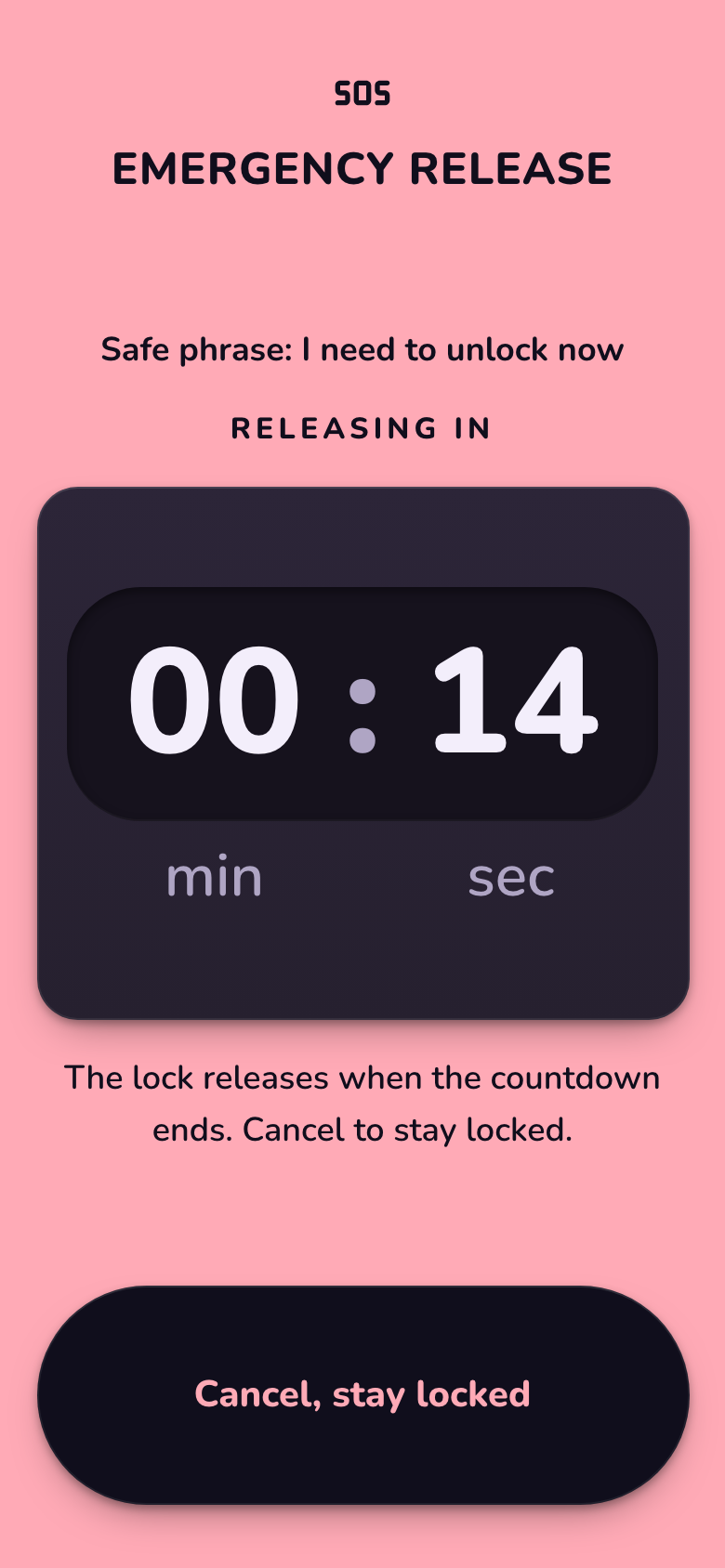
With sound on, the countdown ticks, louder in the last 5 seconds, and the voice says "Emergency release in 15 seconds. Tap the bottom of the screen to cancel."
This differs from emergency unlock on a chastity lock: you don't type the confirmation phrase (it is only shown, as your safe phrase), you can't leave a message, and the countdown gives you a chance to cancel. Like a chastity emergency unlock, it is recorded in the lock history and your keyholder is notified.
If your keyholder turns emergency unlock off during the countdown, the countdown stops and you go back to the session. A check-in that falls due during the countdown only shows its prompt once the countdown ends without a release (you cancel, or your keyholder turns emergency unlock off), but its grace period keeps running: if it runs out first, you are released.
End of the timer
When your lock is ready to unlock, what happens depends on Automatic unlock. The lock is ready when the timer has ended and nothing else holds it (a frozen timer, an extension, a minimum lock time), or as soon as the maximum lock time is reached.
- On (default): the screen unlocks you by itself, within seconds, and shows your combination. If it can't reach Chaster, it retries.
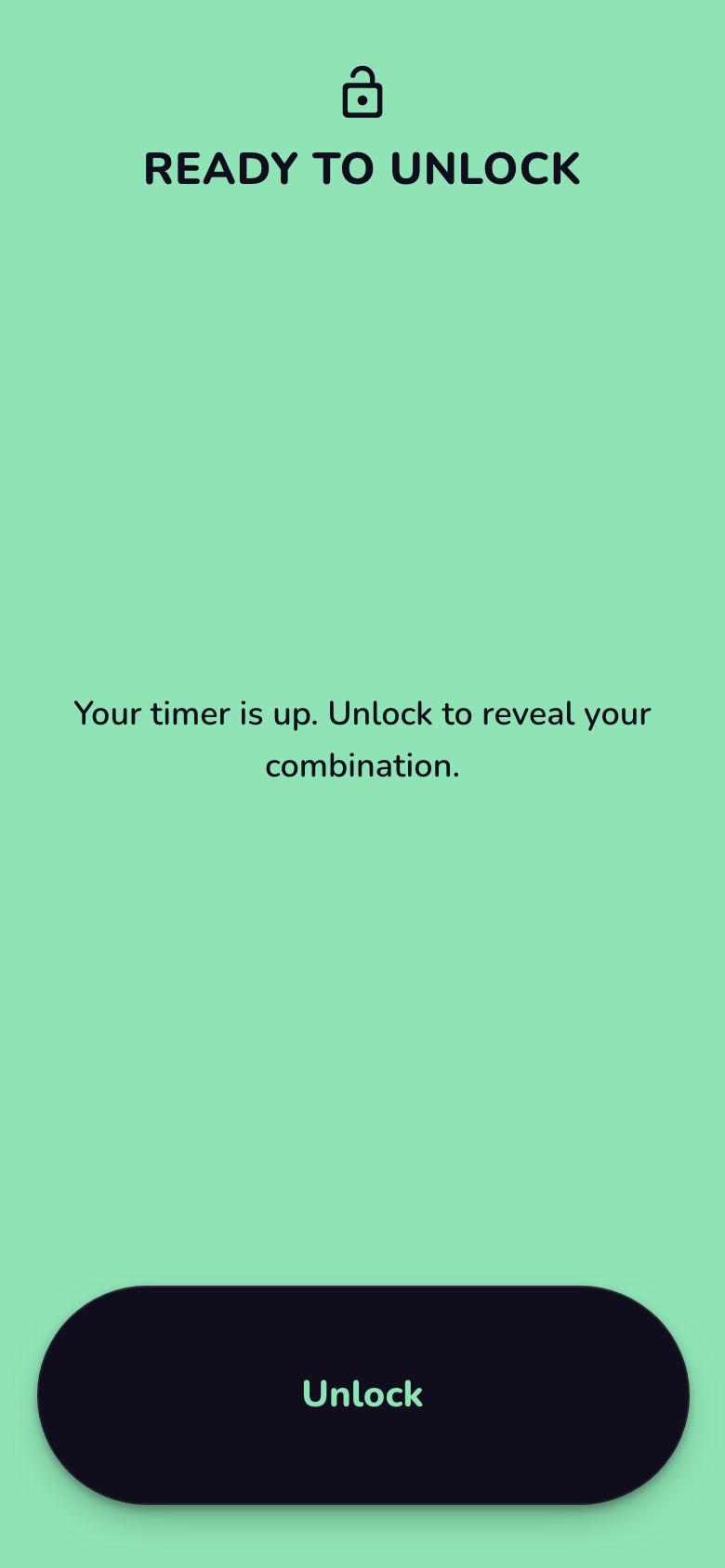
- Off: the screen shows Ready to unlock, "Your timer is up. Unlock to reveal your combination." Tap Unlock.
If a release fails to reach the server, the screen shows "The release couldn't reach the server. Check your connection and retry." with a Retry release button.
You're free
Once you are released, by the timer, your keyholder, an emergency release or a missed check-in, the screen shows You're free and your combination:
- a code is shown in large characters with Copy code. Codes are case-sensitive.
- a combination photo can be tapped to enlarge.
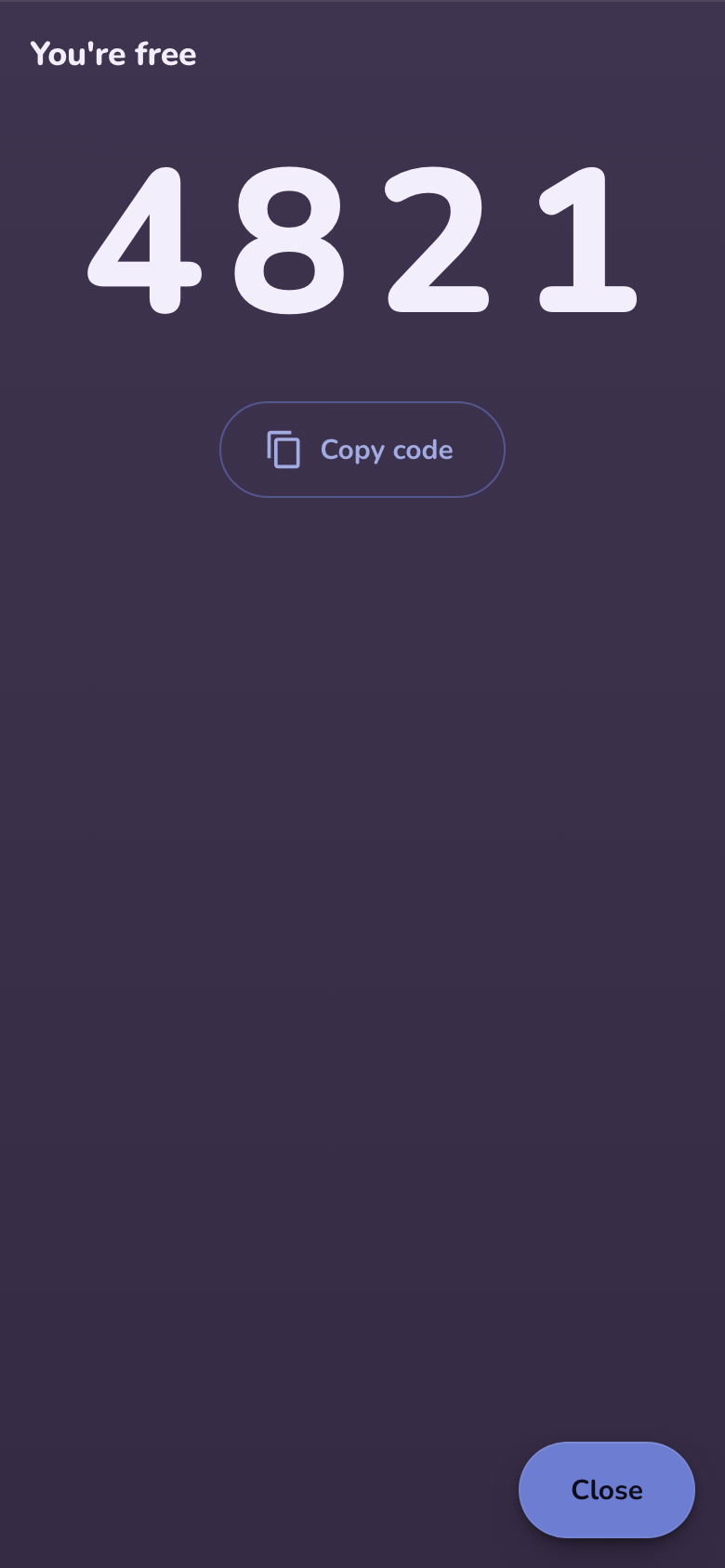
With sound on, the voice says "You're free. Your combination is on screen." and repeats it after 1 and 5 minutes until you tap the screen. You can ask the voice to read your code aloud too, see Control center.
Tap Close to leave. The combination stays available on your lock page afterwards, as for any lock.