Create a bondage lock
You create a bondage lock like any other lock, from Create a self-lock or, as a keyholder, from the shared-lock form. The difference is the Lock type, a Bondage safety section, and a required maximum lock time.
The Lock type section only appears on accounts with bondage locks enabled. See Bondage locks.
Choose the lock type
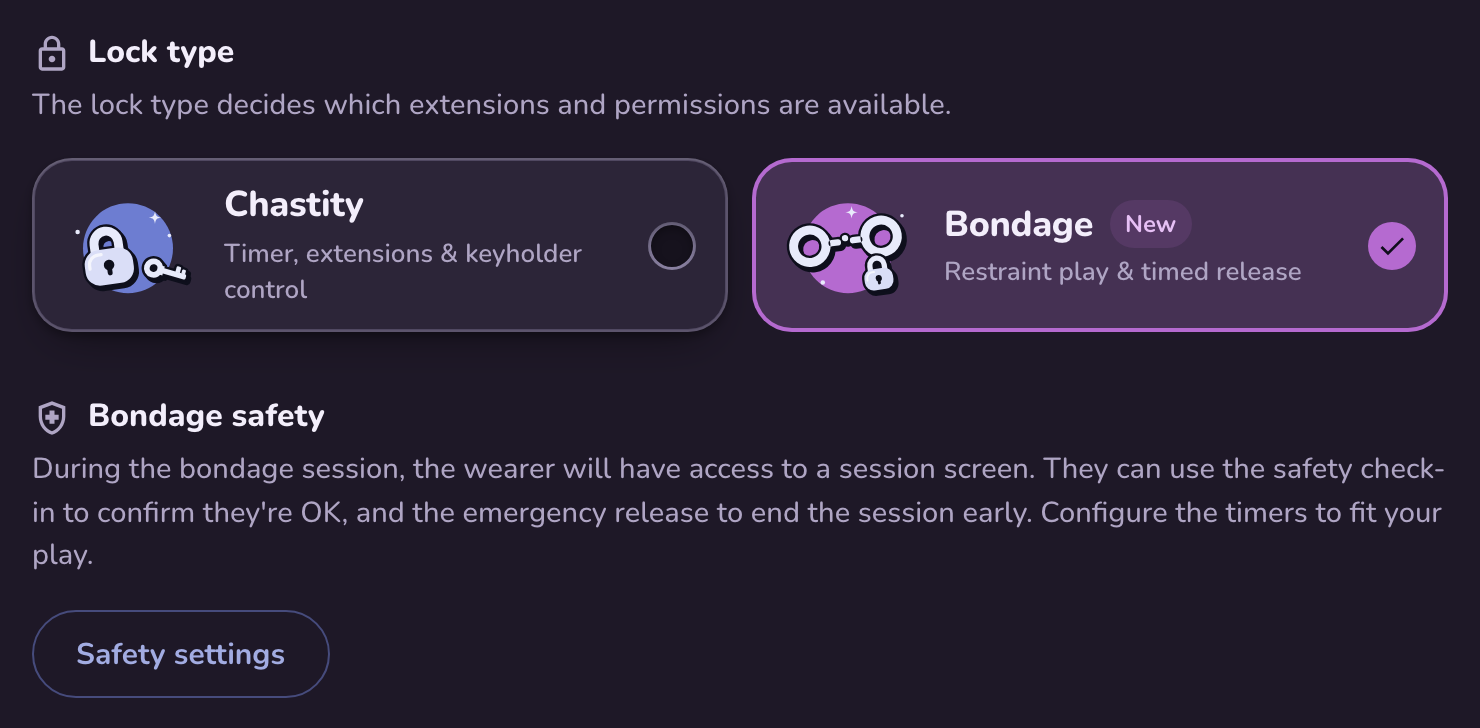
At the top of the form, the Lock type section offers two options:
- Chastity: Timer, extensions & keyholder control.
- Bondage: Restraint play & timed release.
Select Bondage. Chastity is selected by default.
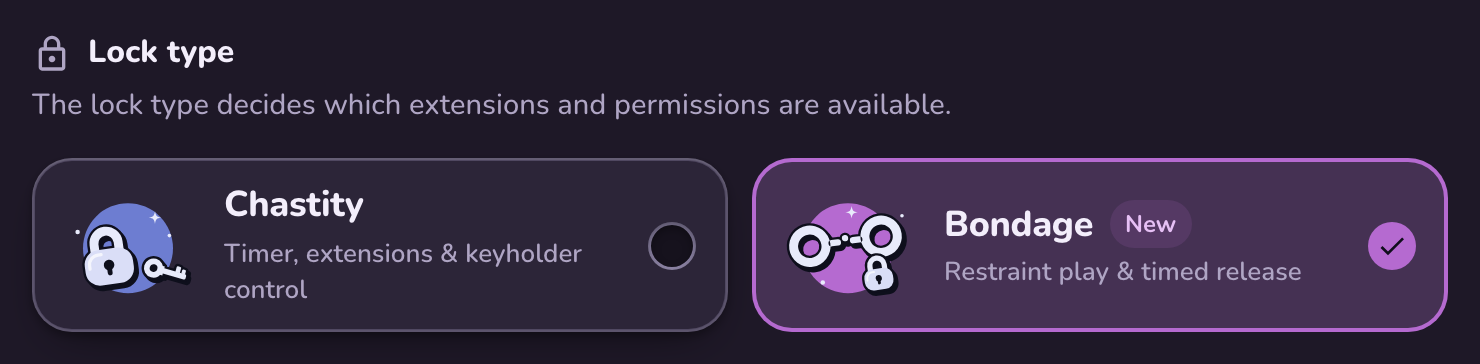
The rest of the form works as for any lock: initial duration, time and display, safety and control, keyholder, permissions and extensions. The sections below cover what changes for bondage.
Bondage safety settings
Selecting Bondage adds a Bondage safety section:
During your bondage session, you will have access to a session screen. Use the safety check-in to confirm you're OK, and the emergency release to end the session early. Configure the timers to fit your play.
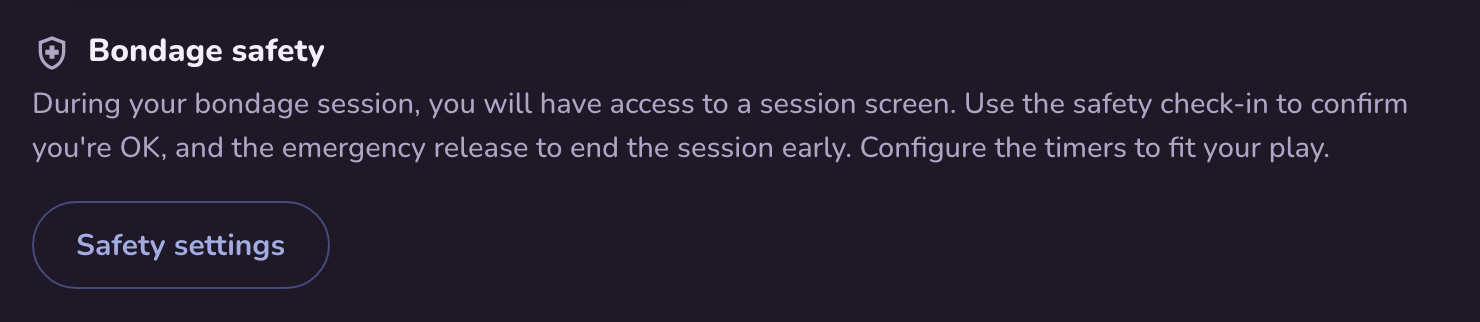
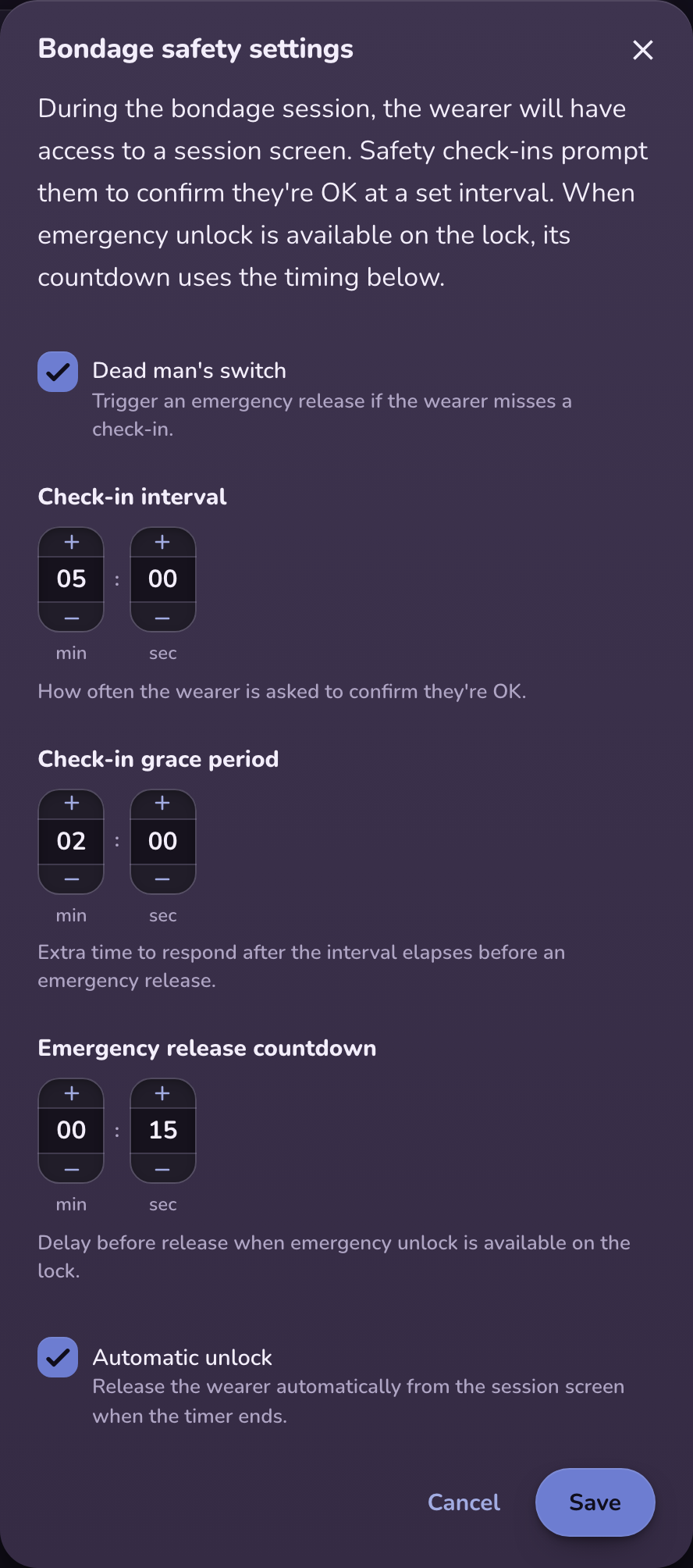
Tap Safety settings to open the Bondage safety settings window. Durations are entered as minutes and seconds (mm:ss).
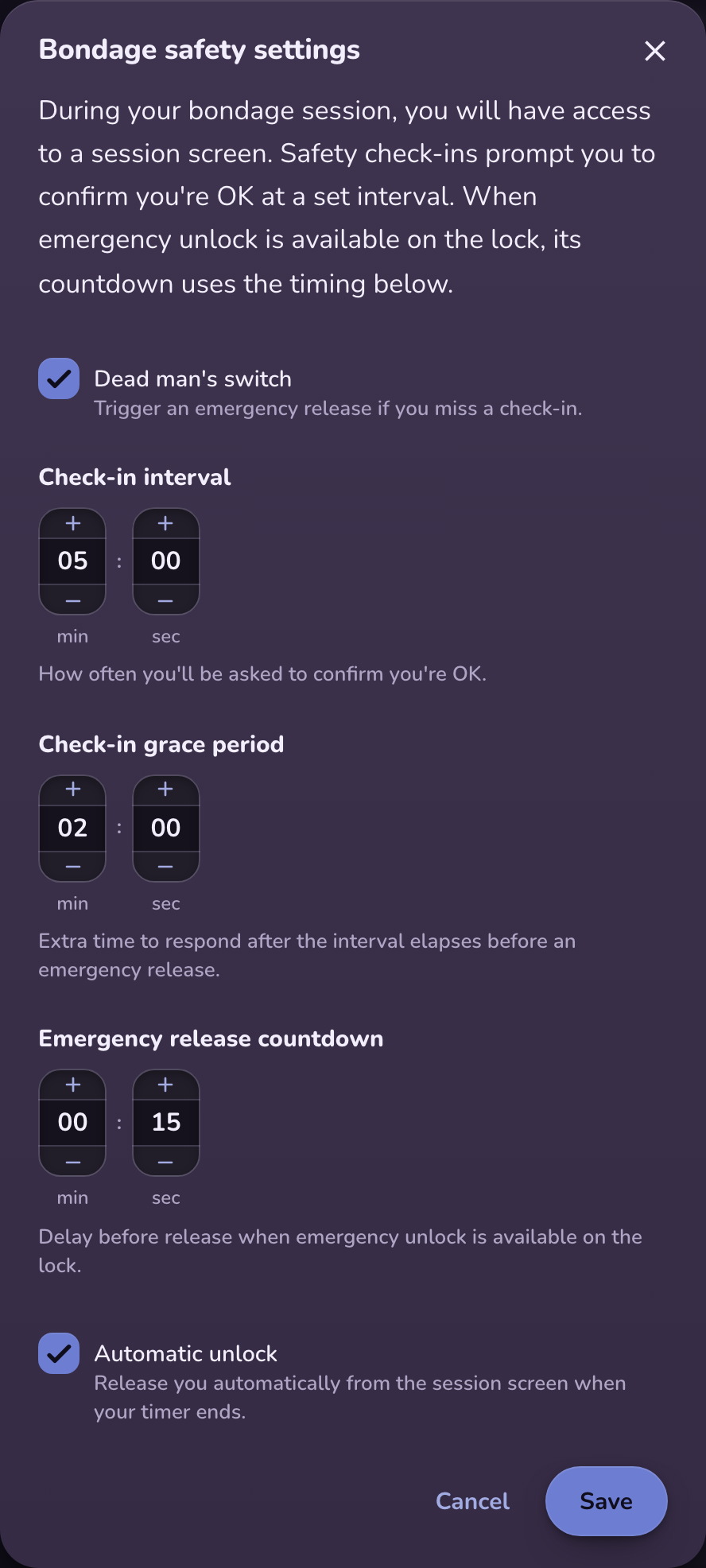
| Setting | What it does | Default |
|---|---|---|
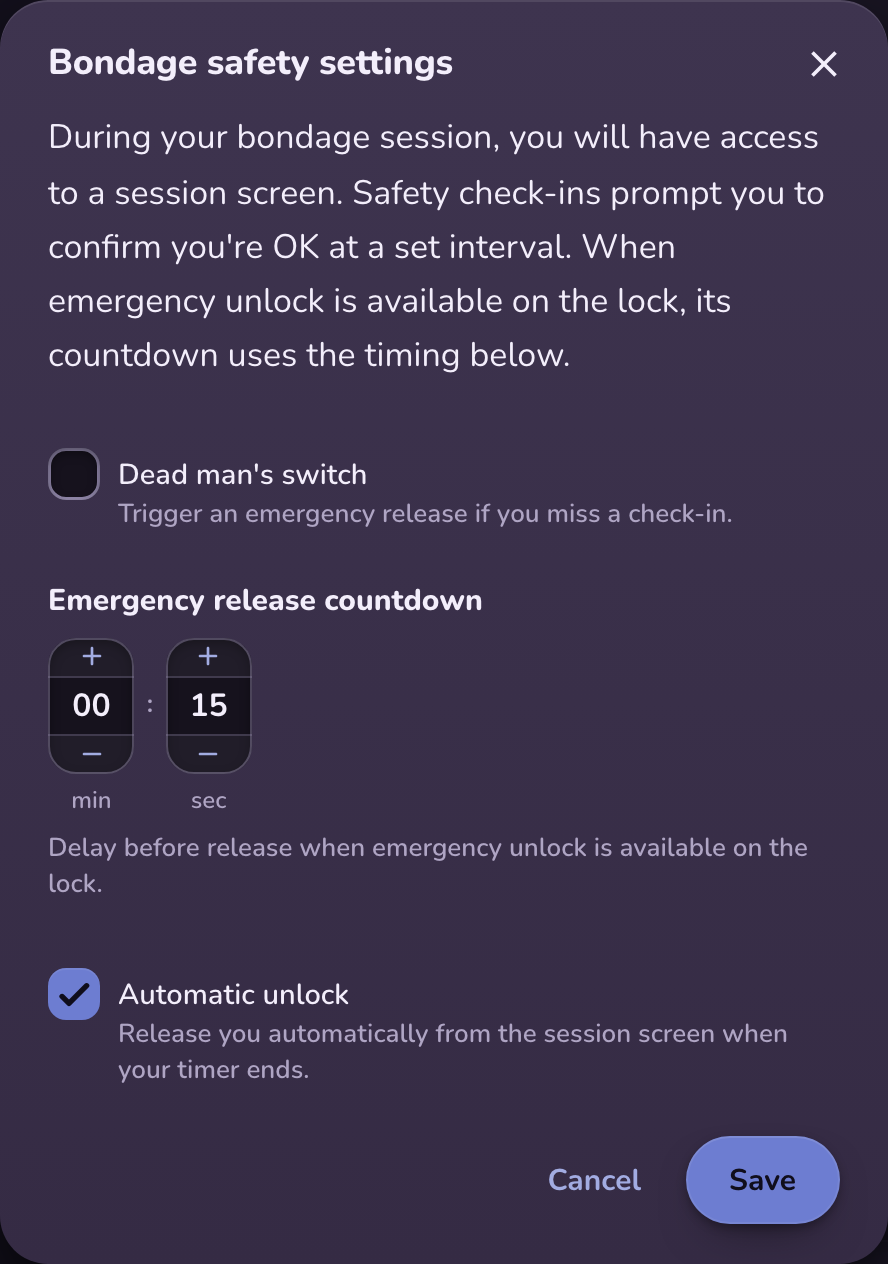
| Dead man's switch | Trigger an emergency release if you miss a check-in. When it is off, there are no check-ins at all. | On |
| Check-in interval | How often you'll be asked to confirm you're OK. Shown only while the dead man's switch is on. Minimum 1 second. | 5:00 |
| Check-in grace period | Extra time to respond after the interval elapses, before an emergency release. Shown only while the dead man's switch is on. Minimum 1 second. | 2:00 |
| Emergency release countdown | Delay before release when you press Emergency release on the session screen. Only used when emergency unlock is on. 0:00 releases immediately. | 0:15 |
| Automatic unlock | Release you automatically from the session screen when your timer ends. When it is off, you tap Unlock yourself. | On |
The grace period adds to the interval. With the defaults, the check-in alarm starts 5 minutes after the last check-in, and you are released if you haven't answered 2 minutes later (7 minutes in total).
Choose a check-in interval and grace period that match what you can physically do while restrained. If you can't reach the screen within the grace period, you will be released, which is what the dead man's switch is for. Try a short session first to check you can reach and tap the screen from your position.
Emergency unlock
The Emergency release button on the session screen only appears when emergency unlock is on. You turn it on in the Safety & control section of the form, exactly as for a chastity lock (see Emergency unlock). Its confirmation phrase is shown on the release countdown as your safe phrase.
The dead man's switch doesn't depend on emergency unlock: a missed check-in releases you even when emergency unlock is off.
Maximum lock time
A bondage lock must have a maximum lock time. In the duration settings, make sure Limit lock time is on and set a maximum at least as long as the maximum duration of the lock (or, for a lock using dates, a maximum date at least as late as the latest end date). Without it, the lock can't be created and you see:
Bondage locks require a maximum lock time at least as long as the maximum duration.
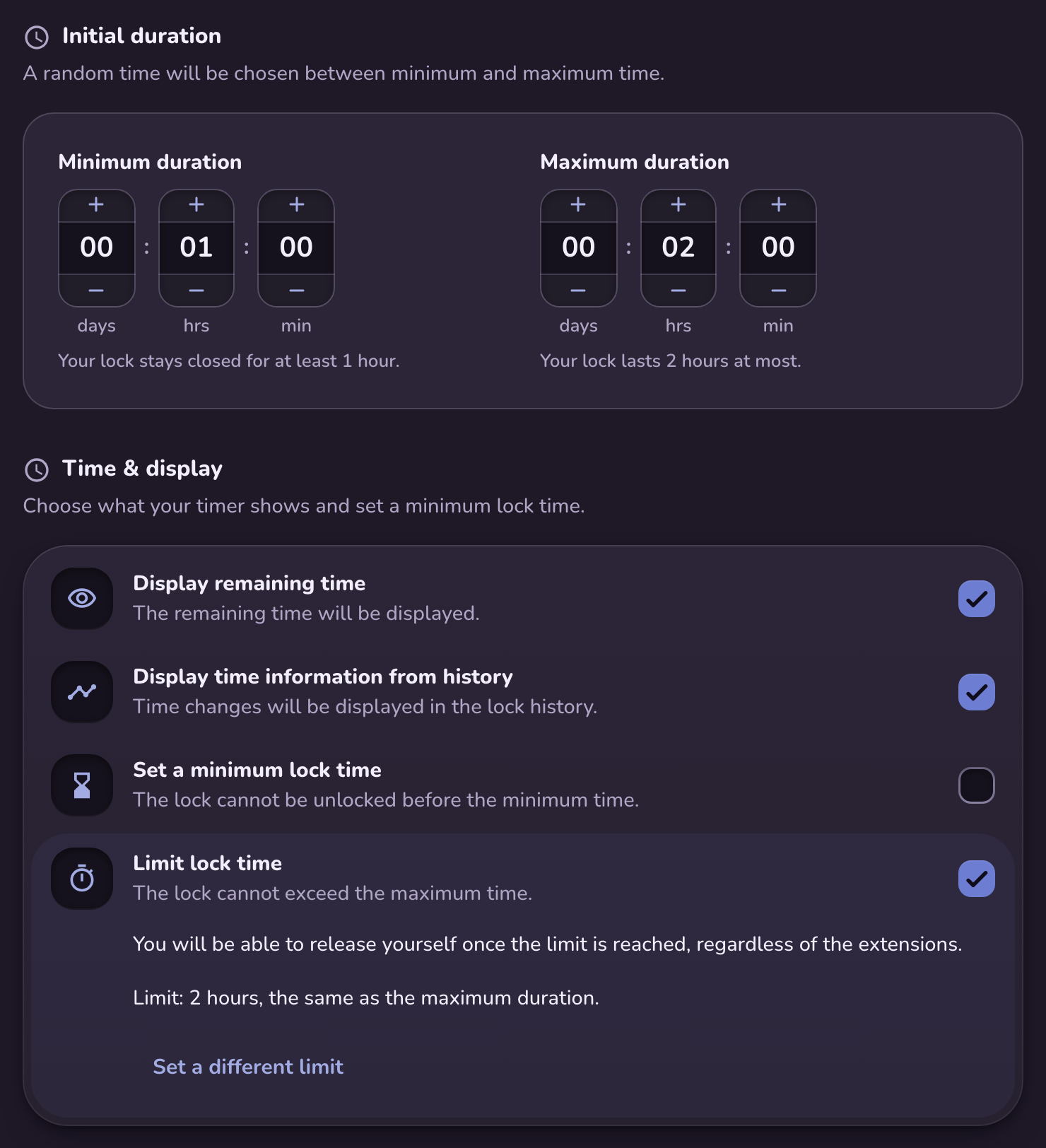
The maximum lock time caps the session, whatever happens to the timer: time added by your keyholder, votes, extensions, or a frozen timer. Once it is reached, the lock is ready to unlock even if the timer is frozen or an extension is holding it. To get your combination, either let the session screen release you (automatic unlock only runs while that screen is open, and needs a connection), or select Ready to unlock on Locks, which works even when the session screen is closed.
During the lock, the maximum lock time can be pushed later, but never removed: "The maximum lock time of a bondage lock cannot be removed." See Lock permissions.
Review before starting
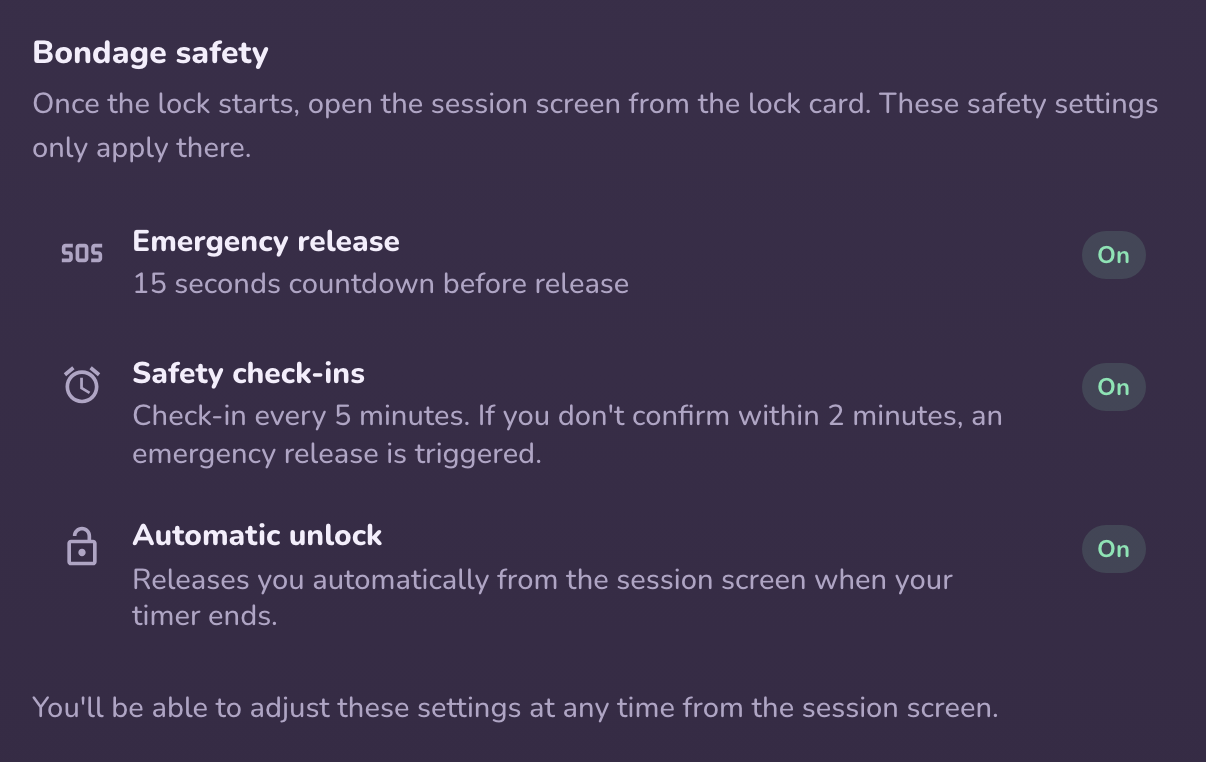
After Continue, the recap step shows a bondage safety summary with Emergency release, Safety check-ins and Automatic unlock, each On or Off:
- "Check-in every 5 minutes. If you don't confirm within 2 minutes, an emergency release is triggered."
- "Once the lock starts, open the session screen from the lock card. These safety settings only apply there."
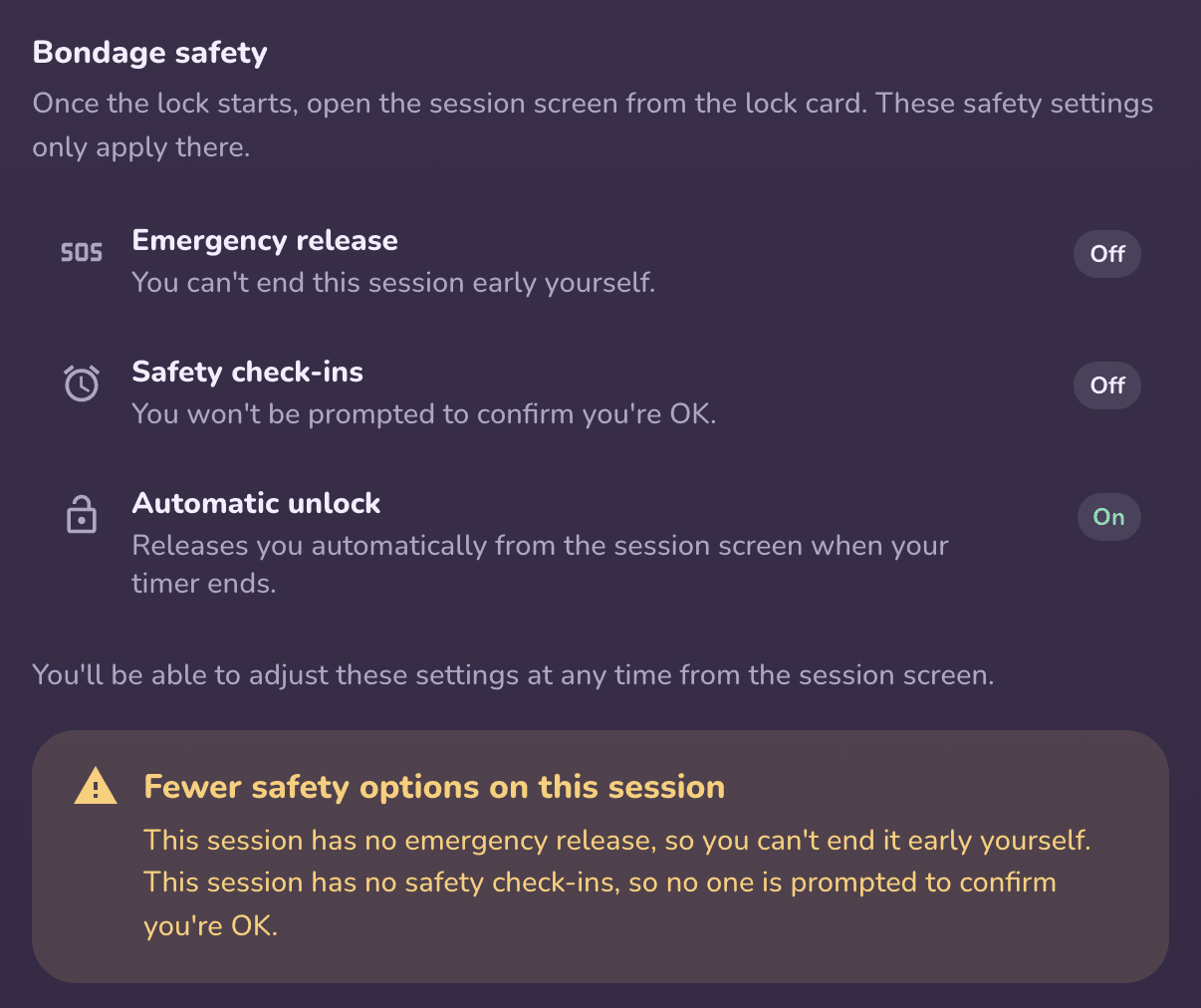
If emergency release or check-ins are off, a warning reads Fewer safety options on this session. Read it carefully: without emergency release you can't end the session early yourself, and without check-ins nobody is prompted to confirm you're OK.
If nobody can join as keyholder and the wearer can't edit the settings, the recap adds: "Nobody will be able to change these settings during the lock."
Then pick your locking method and start the lock. Lock your restraints with the combination, then open the session screen.
Changing the safety settings during the lock
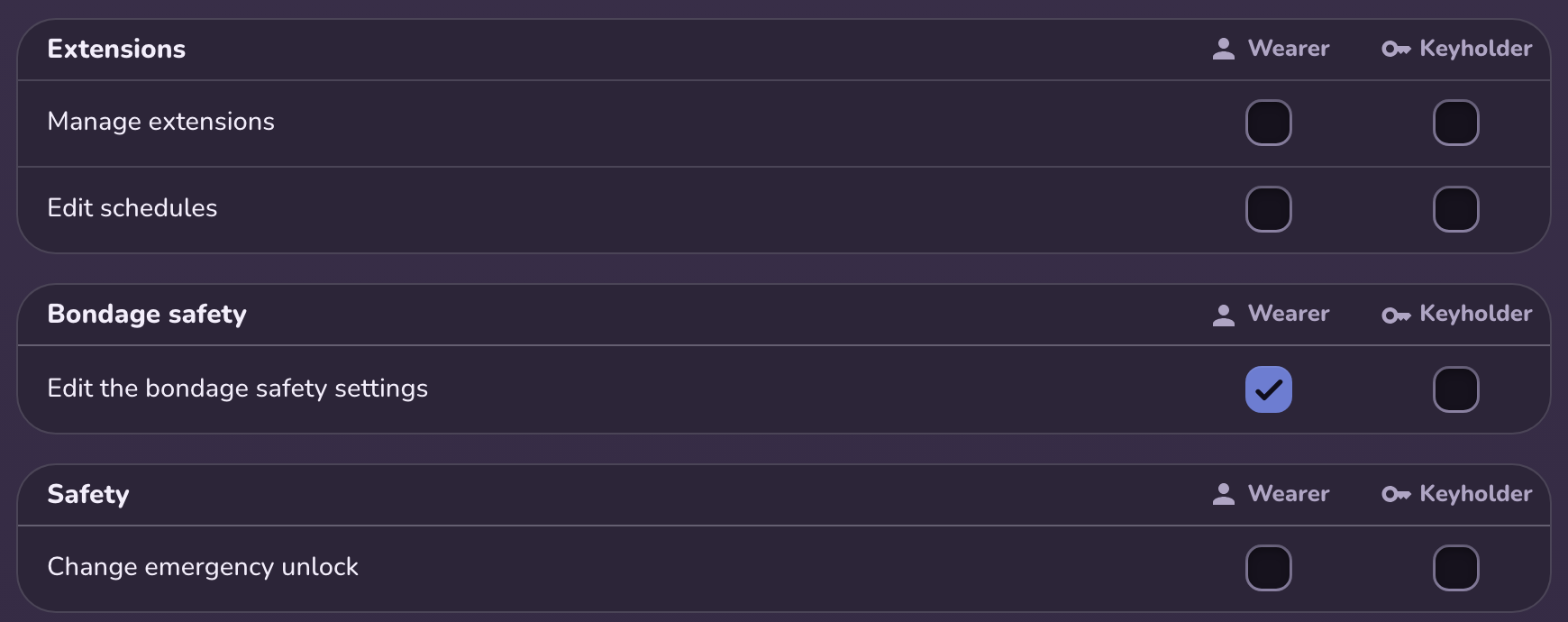
The safety settings can change while the lock runs, from the session screen's control center or from the keyholder's lock page. Who can change them is the Edit the bondage safety settings permission (category Bondage safety), which only exists on bondage locks:
- By default, the wearer can edit them and the keyholder can't.
- The permission can be moved like any other, see Lock permissions.
When one party changes the settings, the other gets a Bondage safety settings changed notification, and the lock history records "updated the bondage safety settings". On the session screen, the voice announces it ("Your keyholder changed your safety settings.") and the new timings apply at once.
Shared bondage locks
As a keyholder, you can create a shared lock with the Bondage lock type. The shared-lock form has the same Lock type and Bondage safety sections, worded for the wearer who will join:
During the bondage session, the wearer will have access to a session screen. They can use the safety check-in to confirm they're OK, and the emergency release to end the session early.
- The maximum lock time is required here too.
- Changes to the shared lock apply to new sessions only.
- Each wearer who joins gets a copy of the safety settings, and sees them before joining. See Discover bondage locks.
During the beta, bondage shared locks can't be made Public. Set the visibility to Unlisted and share the link with the people you want to invite.
Keyholding a bondage lock
As a keyholder, you have the same controls as on a chastity lock (add or remove time, freeze, hide the timer, extensions), within the lock's permissions. In your keyholder lists, bondage locks are marked with a violet handcuffs icon.

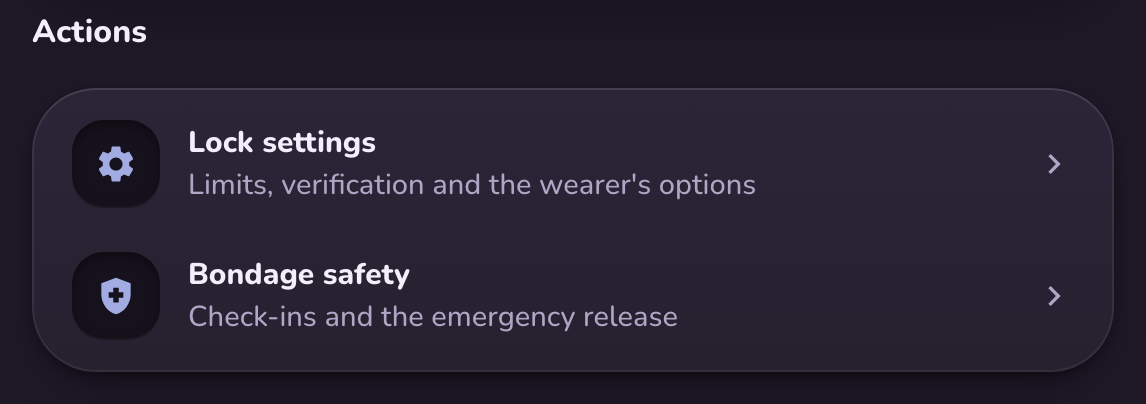
The lock page has an extra Bondage safety action, "Check-ins and the emergency release". It opens the bondage safety settings. It is disabled unless the wearer has granted you the Edit the bondage safety settings permission.
The session screen is for the wearer only: keyholders don't have a live view of it. What you change (time, freeze, safety settings) reaches the wearer's screen within seconds and is read aloud if sound is on.
Starting again with the same settings
Cloning a bondage lock ("start with the same settings") keeps the Bondage type and its safety settings.